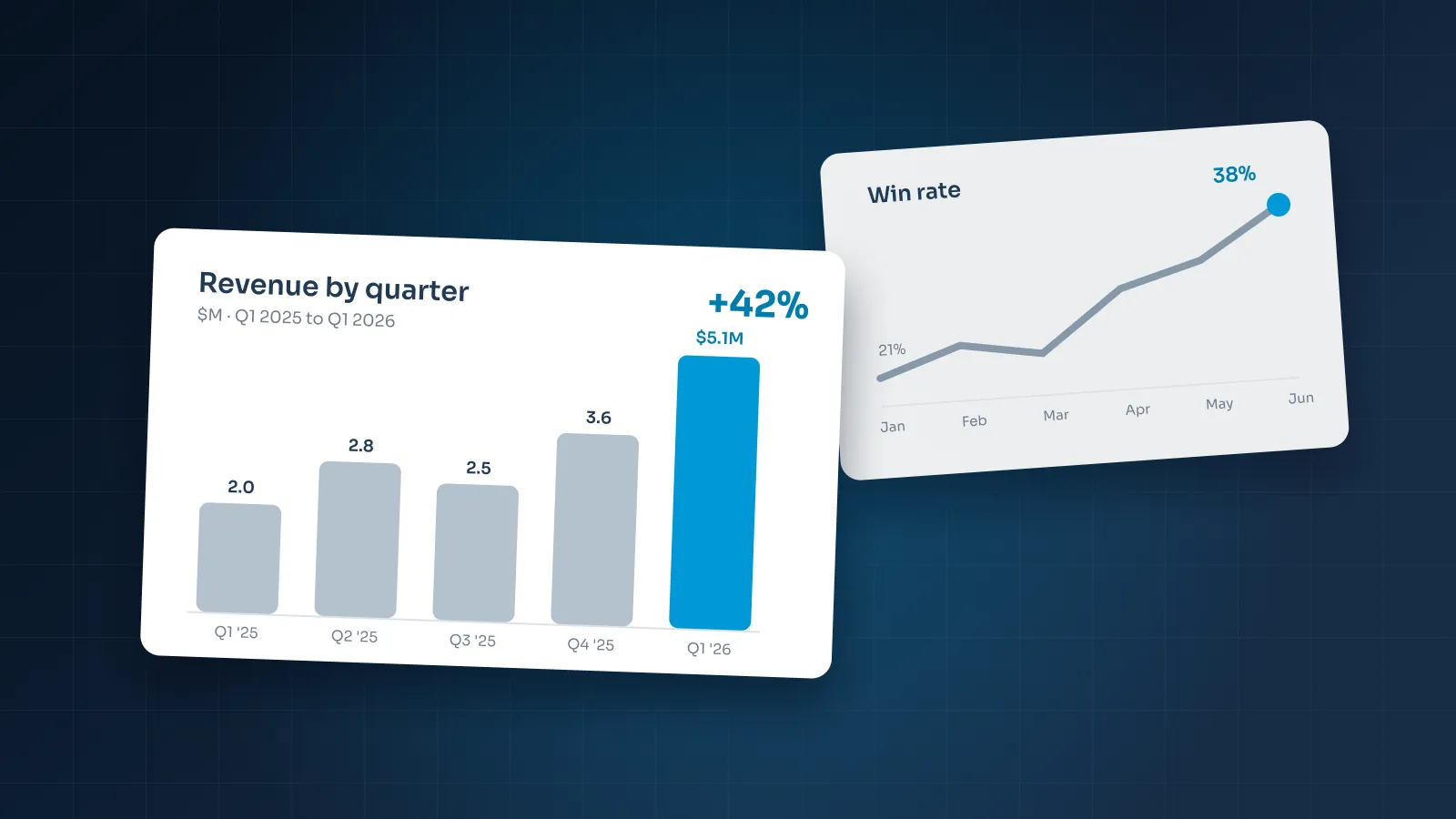

Accessibility sounds like a compliance job for someone else. In practice, it's mostly good slide design done on purpose. Text that passes a contrast check also survives a washed-out projector. A chart with labels on the lines is easier for everyone, not only for people who can't tell red from green.
This guide covers what makes a PowerPoint deck accessible, which built-in tools help, and what those tools can't check for you. It ends with a checklist to run before you present or send a deck. If your organization has its own accessibility standard, follow it; this is the common ground.
Who accessible slides help
More people than most presenters picture:
People with low vision, who need strong contrast and large text, and may zoom in on a shared file.
People with color vision deficiency, who can't rely on red versus green to read a chart or a status.
Screen-reader users, who hear the deck read aloud: titles, text, alt text and tables, in the order the file sets.
Deaf and hard-of-hearing people, who need captions on video and benefit from live subtitles while you present.
People reading in a second language, who follow plain words and clear titles more easily.
Everyone at the back of the room, or watching in a small window on a laptop.
A deck also has two lives. In the room, people see the slides while you talk. Afterwards, the file or PDF gets forwarded and read alone, with no presenter to explain it. An accessible deck works in both.
Most of the work happens slide by slide, and the same five things come up on almost every one.

These habits are the core of good PowerPoint design in general. Accessibility just asks you to apply them every time.
Contrast and color
Contrast
The WCAG standard sets minimum contrast ratios between text and its background:
4.5:1 for normal text.
3:1 for large text, which WCAG defines as 18 pt, or 14 pt bold.
3:1 for graphics that carry meaning, such as chart lines and icons, against the colors next to them. This is WCAG 2.1's "non-text contrast".
The usual failures on slides are light gray footers and source lines, white text on a pale brand color, text placed straight on a photo, and a pale gray chart line on white.
Test each pair of colors once, when you set up the palette, with any free contrast checker. Then you don't have to test every slide. Where text sits on a photo, put it on a solid or darkened panel. Our guide to presentation color schemes shows how to build a palette with contrast in mind from the start.
Never color alone
WCAG also says color shouldn't be the only way information is shown. Add labels, patterns, line styles or icons. On slides, that means:
Charts: label lines and bars directly, and vary line styles (solid, dashed, dotted) so series stay distinct without color.
Status: pair a red, amber or green marker with a word: "On track", "At risk", "Late".
Highlights: if a key row is in the accent color, make it bold too.
Links: keep them underlined, so they don't depend on color.
A quick test: print the slide in black and white. If the meaning disappears, color was doing too much of the work.
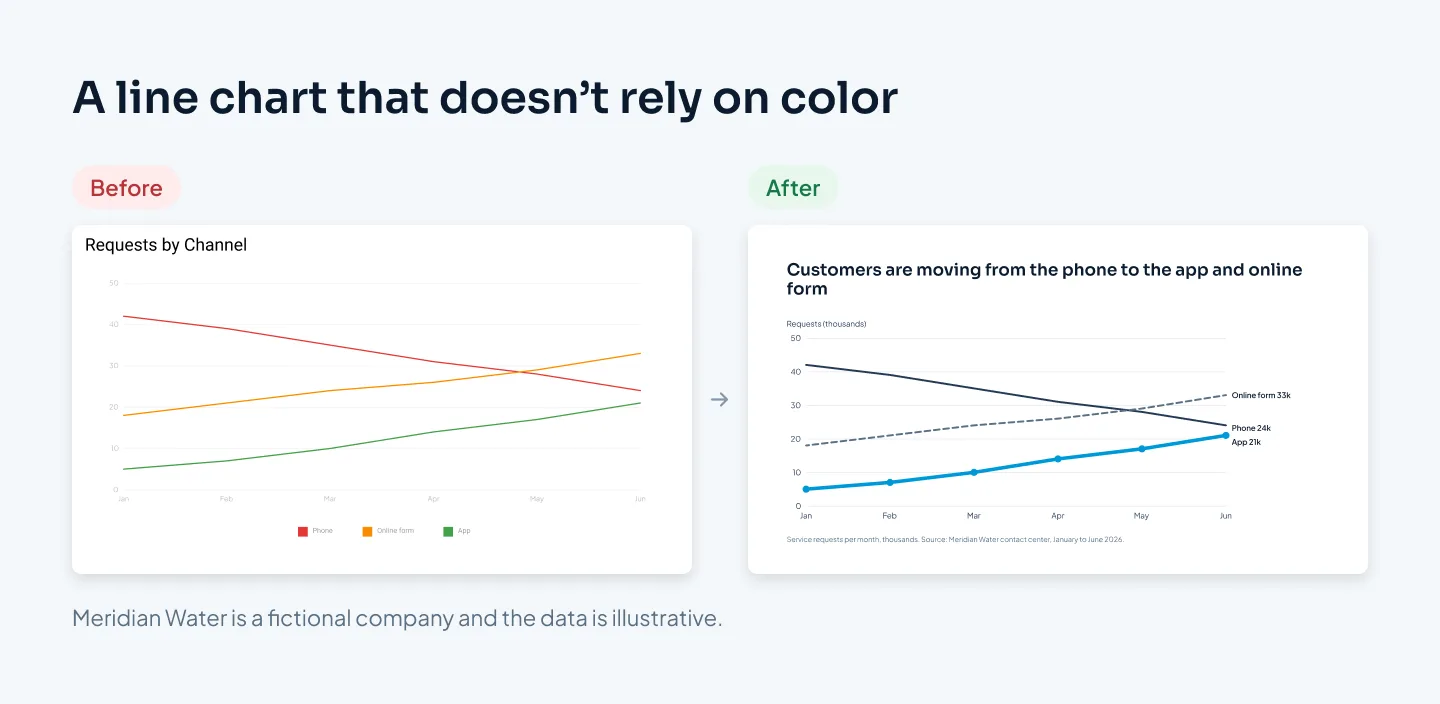
For more on chart design, our guide to presenting data in PowerPoint covers direct labels, decluttering and choosing the right chart.
Text size and fonts
Text that's too small or too fancy is one of the easiest accessibility problems to fix.
Size: for presented slides, keep body text at 18 pt or larger. Only labels, footers and source lines go smaller, and not below 12 pt. Decks sent to be read can use smaller body text, but readers may need to zoom.
Aim for 4.5:1 everywhere. At 18 pt, body text technically counts as large text under WCAG and needs only 3:1. On a projector, that margin disappears fast, so treat 4.5:1 as your floor for all text.
Plain fonts: script, handwritten and novelty fonts, and very thin or condensed weights, are hard to read on screens and projectors.
Calm layout: left-align body text, avoid long runs of capitals or italics, and keep lines to half or two-thirds of the slide width.
Fewer words: a slide with one point and three short lines helps a screen-reader user as much as anyone in the room.
Fonts also need to survive the trip to another computer. If a font isn't installed where the deck opens, PowerPoint substitutes another one, and line breaks and spacing change. Text can then overflow its box or collide with a shape. Arial, Georgia, Verdana, Times New Roman, Trebuchet MS and Courier New are installed on both Windows and macOS. To keep a brand font, embed it: on Windows, File > Options > Save > "Embed fonts in the file", and current PowerPoint for Mac also supports embedding. Some font licenses don't allow it, so check yours. Our guide to the best fonts for presentations goes further.
Slide titles and reading order
A unique title on every slide
Screen readers announce each slide's title, and screen-reader users can move through a deck by title, the way sighted readers skim headings. That makes titles the table of contents for anyone who can't see the slides.
Every slide gets a title, including section dividers and image-only slides.
No two titles are the same. Three slides called "Results" sound identical. Titles that state each slide's point, such as "Repairs now take 3 days instead of 8", are unique by nature.
Use the title placeholder, not a text box you drew. The Accessibility Checker looks for real slide titles.
Hide it if you must. If the design needs a slide without a visible title, such as a full-bleed photo, add the title anyway and move it off the slide. It stays in the file for screen readers but doesn't appear on screen.
Reading order
A screen reader reads the objects on a slide in a set order, which isn't always the order you see. Open the Reading Order pane from the Check Accessibility menu to check it. The title should come first, then the content in the order you'd explain it.
Built-in layouts and placeholders help here, because their reading order is already set. Problems start with the extras you add yourself: a text box, a callout, a logo pasted on top. On any busy slide, open the pane and move each item into the right place.
This is one of the strongest arguments for a proper template. A custom PowerPoint template with a layout for each kind of slide means most content lands in placeholders, with titles and reading order right from the start. For an example of layouts built on placeholders, see the Merck template system we designed for patient and clinical-trial content, with calm editorial type.
Alt text for images, charts and icons
Alt text is the description a screen reader reads in place of an image. In PowerPoint, right-click an image and choose View Alt Text (or Edit Alt Text) to open the Alt Text pane. In Google Slides, right-click and choose Alt text.
What to write:
The point, not just the picture. "Repair crew replacing a water main on a residential street" tells the listener more than "photo of workers".
One or two sentences. Long descriptions belong in the slide text.
Charts: the takeaway and the key numbers. For example: "Line chart: from January to June 2026, phone requests fell from 42,000 to 24,000 while app requests rose from 5,000 to 21,000." If readers need every value, add a simple table on the next slide or in the appendix.
Diagrams: the structure. "Four-step process: sign up, add lanes, book a load, track and pay." Our guide to infographics in PowerPoint shows how to build diagrams that stay readable.
Decorative images: mark them. If an icon repeats the label beside it, or an image is purely visual, mark it as decorative in the Alt Text pane, so the screen reader skips it.
Avoid text inside images altogether. A screenshot of a table or a pasted picture of a slide is a single image to a screen reader, however much text it shows. Use live text, native tables and native charts instead.
Accessibility is mostly good slide design, done on purpose and checked before you send.
Tables, links and video
Tables
Keep tables simple: one header row, one value per cell, and no merged or split cells. Screen readers move through a table cell by cell, and merged cells make it hard to know which header a value belongs to. If a table has grown too complex to read aloud, it's usually too complex to present too. Show the rows that make the point and move the full table to the appendix.
Links
Use meaningful link text, such as "2026 rate tables", instead of "click here" or a bare URL. A URL read aloud character by character helps nobody, and "click here" means nothing out of context.
Video
Add captions to any video with speech. PowerPoint for Microsoft 365 lets you insert closed captions for video files. If something important is only said in a video, put it on the slide as well.
Run the Accessibility Checker
In PowerPoint, go to Review tab > Check Accessibility. The checker flags missing alt text, missing slide titles, duplicate slide titles, reading-order issues, low contrast and more, and lists each issue so you can work through them one by one.
Treat it as a floor, not a finish line. It can't tell whether your alt text is useful, whether your titles make sense in order, or whether a chart still works without color. Those need a person.
A routine that covers both:
Run the checker and fix everything it flags.
Open the Reading Order pane on every busy slide.
Read the slide titles alone, in order. They should tell the story and never repeat.
Print a few key slides in black and white and check the charts still make sense.
If you're sending a PDF from PowerPoint on Windows, tick "Document structure tags for accessibility" in the PDF options, so the PDF keeps its accessibility tags.
For the other checks to run before a deck goes out, from brand to file names, see our corporate presentation checklist.
Presenting accessibly
The file is half the job. The way you present matters just as much.
Turn on live subtitles. In PowerPoint for Microsoft 365, choose Slide Show > Always Use Subtitles, and use Subtitle Settings to set them up before you start. In Google Slides, use the Captions button in presenter mode.
Say what's on the slide. Read out the title's point and the key numbers. Describe a chart by its message: "app requests rose every month", not "as you can see here".
Give people time. Don't move to the next slide while you're still talking about the last one.
Share the deck ahead where you can, so people using screen readers or magnification can follow on their own device.
Online, design for a small window. On a video call, your slides may fill only part of someone's screen. Our guide to webinar slides covers sizing and pacing for that.
If you'd like a team to build decks this way for you, our corporate presentation design service does it on your brand, with editable files. At Pixel Presentation, design is $10 a slide, or $15 for complex slides such as multi-series charts, and the pricing estimator shows your exact price.
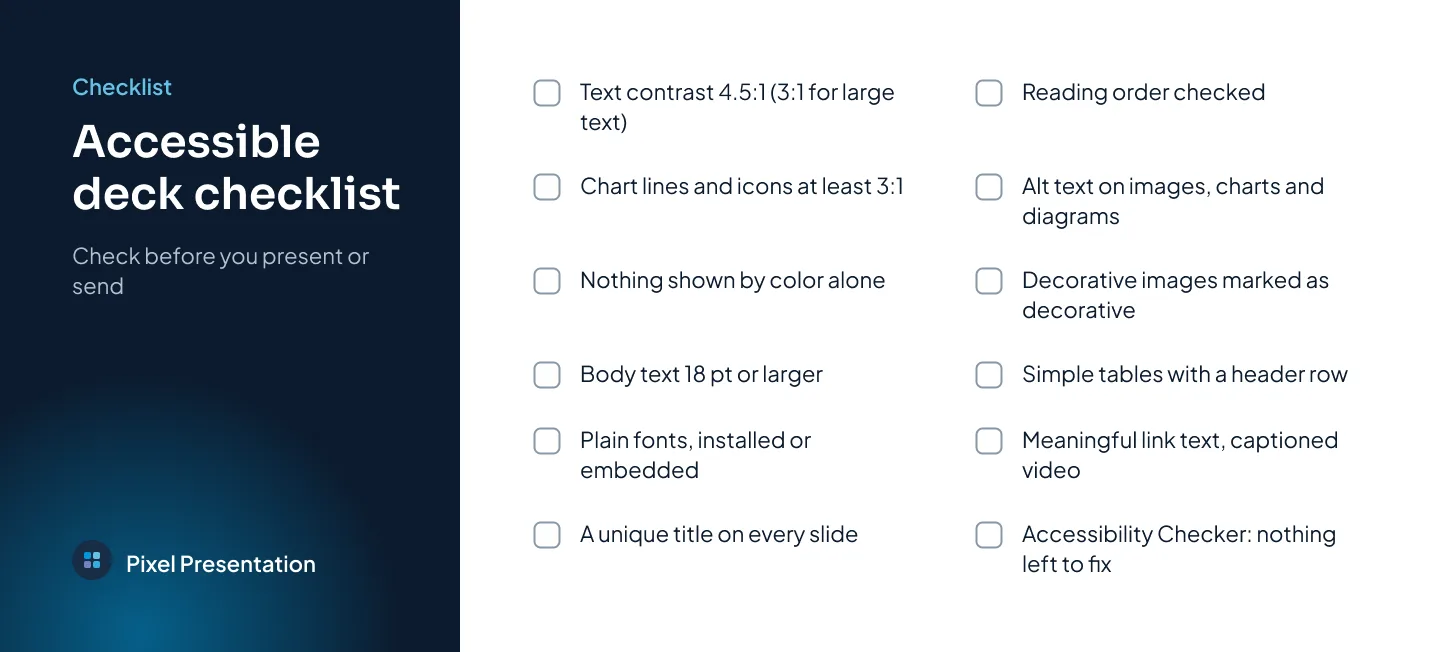
Checklist
Run through this before you present or send a deck.
- Text contrast is at least 4.5:1, or 3:1 for large text (18 pt, or 14 pt bold).
- Chart lines, icons and other meaningful graphics reach 3:1 against neighboring colors.
- Nothing relies on color alone: charts are labeled directly and statuses have words.
- Body text on presented slides is 18 pt or larger.
- Fonts are plain and readable, and installed or embedded wherever the deck will open.
- Every slide has a title, and no two titles are the same.
- Content sits in the built-in layouts and placeholders.
- The reading order is checked on every busy slide.
- Meaningful images, charts and diagrams have alt text.
- Decorative images are marked as decorative.
- No important text is trapped inside an image.
- Tables have one header row and no merged or split cells.
- Links use meaningful text, not "click here" or a bare URL.
- Videos have captions.
- The Accessibility Checker shows nothing left to fix.
- PDFs exported from PowerPoint on Windows include document structure tags.
- Live subtitles are set up if you're presenting.