Most font advice is a list of favorite typefaces. That's the easy part. The harder question is whether your font will still be there when a client opens the deck on another computer. When it isn't, PowerPoint or Google Slides swaps in another font, and every line break and text box moves.
This guide sorts presentation fonts by where they work: fonts that travel between Windows and Mac, Microsoft Office fonts, Google Fonts for Google Slides, and brand fonts. Then it covers six pairings, sizes and weights, fonts to avoid and how to set everything up once as theme fonts. It goes deeper than the type section of our guide to making a PowerPoint look professional, and keeps its two rules: two fonts at most, in a few clear sizes.
What makes a font good on slides
A slide font has a harder job than a document font. It's read from a distance, on screens of every quality, in a few seconds, by people who are also listening to you. Five qualities matter:
Clear letter shapes. Letters such as l, I and 1, or rn and m, should be easy to tell apart.
Open proportions. A generous x-height (the height of lowercase letters) and open spacing keep text readable at small sizes and from the back of a room.
Sturdy strokes. Regular and bold weights that hold up on a projector. Very thin weights are hard to read on screens and projectors.
A family with weights. At least a regular and a bold, ideally a semibold too, so you can build hierarchy inside one family.
Availability. It's installed, built into the app or embedded, wherever the deck will be opened.
The last point decides more than the others. A beautiful font that turns into a substitute on your client's laptop does more harm than a plain one that stays put.
Sans serif fonts are the usual choice for body text on slides, because their simple shapes hold up at a distance. Serif fonts work well for headings and in decks with an editorial or traditional voice. Neither is wrong. Size, weight and contrast matter more than the category.
Fonts that travel
These fonts are installed on both Windows and macOS, so a deck set in them looks the same on either:
Arial: a neutral sans serif. Plain, but always there.
Verdana: a wide sans serif with generous spacing. Easy to read at small sizes, but it takes more room, so headlines run longer.
Trebuchet MS: a sans serif with a little more character, good for headings.
Georgia: a sturdy serif for headings, and for body text in decks that are read rather than presented.
Times New Roman: narrow and familiar from documents. On slides it tends to look like a printed report.
Courier New: a typewriter-style font in which every letter has the same width. Keep it for code samples.
For a deck that people you don't know will open, edit and forward, these are the safest choices. Georgia for headings with Arial for body text works anywhere.
Fonts that only look universal
Some fonts feel standard because your own computer uses them everywhere. They aren't:
Segoe UI is a Windows system font. It isn't installed on Macs by default.
Helvetica Neue and SF Pro are Apple system fonts. They aren't on Windows.
Design a deck on a Mac in Helvetica Neue and send it to a client on Windows, and they'll see a substitute font with different line breaks. The same happens in reverse with Segoe UI.
Microsoft Office fonts
Calibri was Microsoft Office's default font for many years, and Aptos is the default in current Microsoft 365. Both come with Microsoft Office on Windows and Mac. That makes them safe when everyone who opens the deck has Office, as inside a company that runs on Microsoft 365.
If someone might open the file without Office, choose a font from the list above instead.
Fonts for Google Slides
Google Slides uses Google Fonts. The font menu shows a short list, and More fonts adds others from the Google Fonts library. Google Fonts are free to use, including commercially, and a deck set in them looks the same for everyone who opens it.
These Google Fonts work well on slides:
| Font | Style | Use it for |
|---|---|---|
| Inter | Sans serif | Clean headings and body text |
| Open Sans | Sans serif | Friendly, very readable body text |
| Lato | Sans serif | Warm body text and subheads |
| Source Sans 3 | Sans serif | Body text beside a serif heading |
| Montserrat | Sans serif | Wide, confident headings |
| Poppins | Sans serif | Round, geometric headings |
| IBM Plex Sans | Sans serif | Reports and data-heavy slides |
| Merriweather | Serif | Sturdy serif headings |
| IBM Plex Serif | Serif | Headings beside IBM Plex Sans |
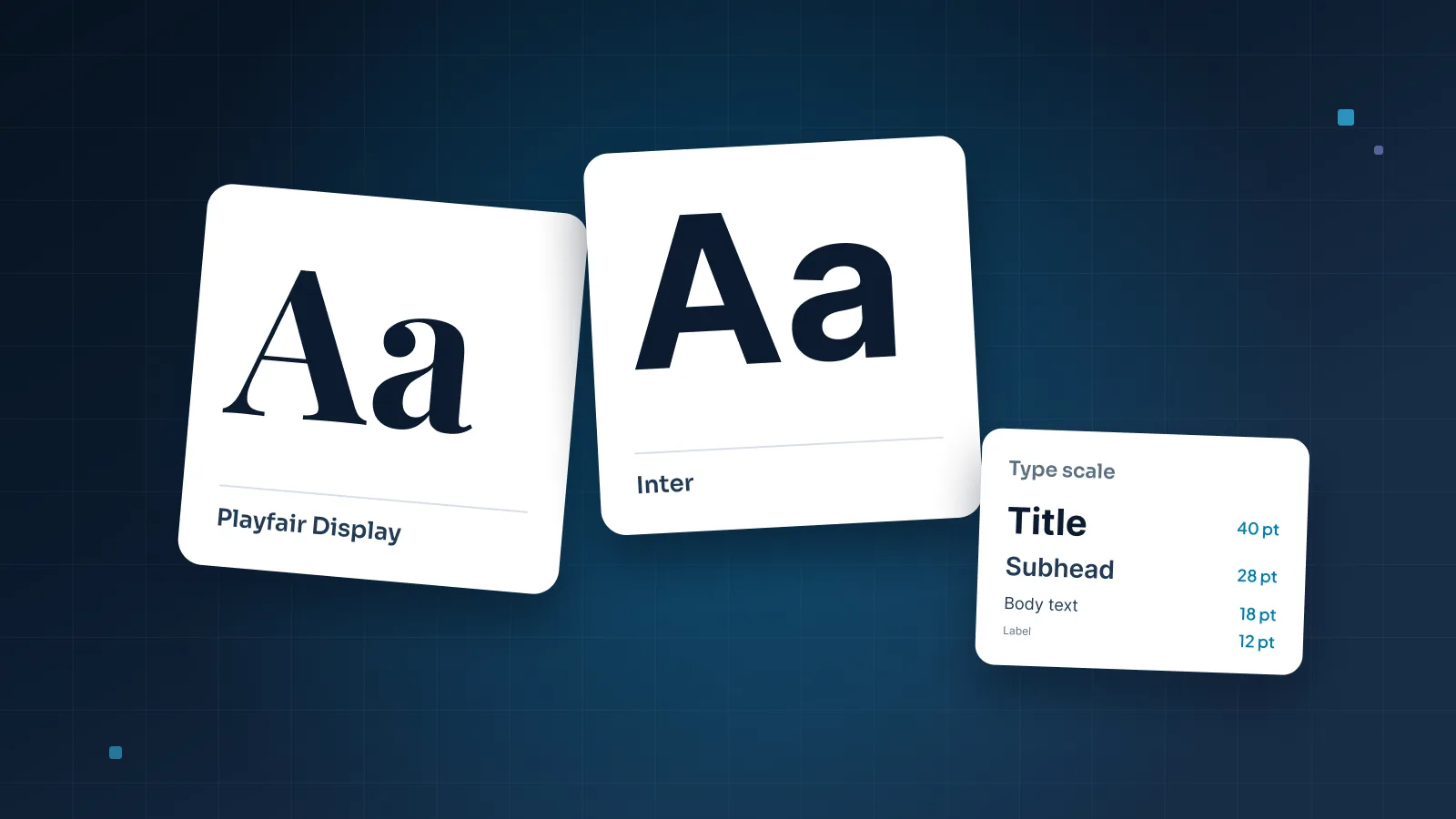
| Playfair Display | Serif | Large, elegant headings only |
Roboto, Work Sans, Nunito Sans, Libre Franklin and Noto Sans are also good, plain choices for body text.
If a deck has to move between Google Slides and PowerPoint, choose a Google Font and install it on the computers that will open the PowerPoint version. Our comparison of Google Slides, PowerPoint and Keynote covers what else changes when you convert.
Want a font that isn't a Google Font? Check the Google Slides font menu before you design with it. If it isn't there, Slides substitutes another font.
Brand fonts and embedding
If your brand has its own typeface, there are three ways to keep it in your decks.
Install it everywhere
If your IT team can put the brand font on every company computer, internal decks can use it freely. The risk starts when a deck leaves the company.
Embed it in the file
PowerPoint can embed fonts in the file. On Windows, go to File > Options > Save and tick "Embed fonts in the file". If other people will edit the deck, choose "Embed all characters", which PowerPoint describes as best for editing by other people. "Embed only the characters used" keeps the file smaller. Current PowerPoint for Mac also supports embedding.
Two cautions. Some font licenses don't allow embedding, and some fonts can't be embedded at all, so check your license. And always test: open the saved file on a computer without the font and click through every slide.
Name a fallback for shared files
For decks other companies will edit, name a fallback: a font that travels, or an Office font, close to the brand font in feel. Write it into your brand guidelines so nobody "fixes" it later. Our guide to custom PowerPoint templates explains how a template handles this.
In Google Slides, the fallback has to be a Google Font. Pick the closest match once and use it in every Slides deck. In Keynote, the fonts must be installed on the Mac that presents.
When a deck only needs to be read, send a PDF too. It shows the deck as you designed it, whatever fonts the reader has.
Font pairings that work
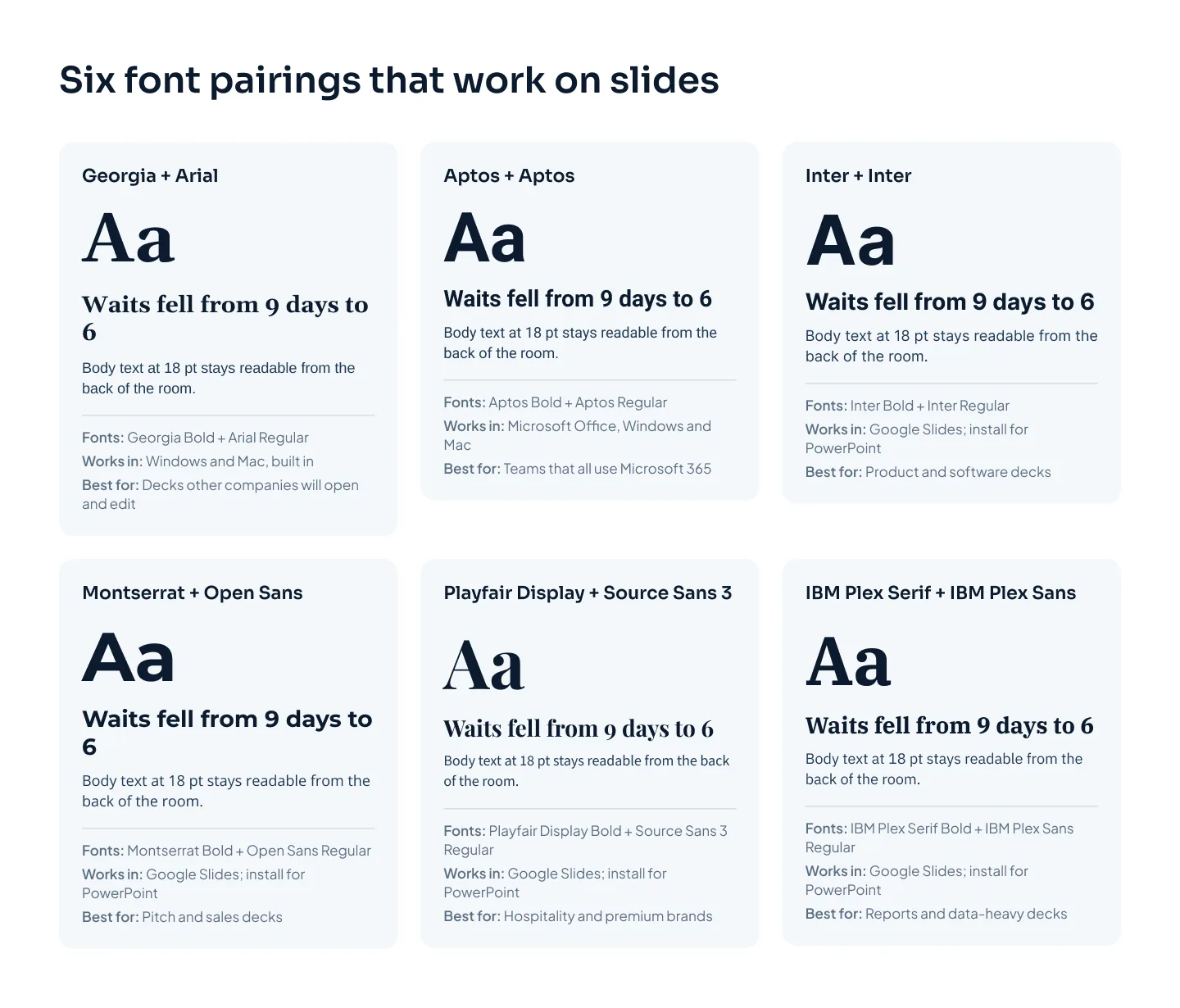
A pairing is a heading font and a body font that differ enough to show hierarchy and match enough to belong together. The simplest pairing is one family in two weights: bold for headings, regular for body text. It's hard to get wrong.
When you pair two families, make the contrast clear: a serif with a sans serif, or a wide heading font with a plainer body font. Two similar sans serifs side by side look like a mistake.
| Heading | Body | Works in | Best for |
|---|---|---|---|
| Georgia, bold | Arial | Windows and Mac, built in | Decks other companies will open and edit |
| Aptos, bold | Aptos | Microsoft Office, Windows and Mac | Teams that all use Microsoft 365 |
| Inter, bold | Inter | Google Slides; install for PowerPoint | Product and software decks |
| Montserrat, bold | Open Sans | Google Slides; install for PowerPoint | Pitch and sales decks |
| Playfair Display, bold | Source Sans 3 | Google Slides; install for PowerPoint | Hospitality and premium brands |
| IBM Plex Serif, bold | IBM Plex Sans | Google Slides; install for PowerPoint | Reports and data-heavy decks |
A few notes on using them:
Playfair Display has very fine strokes in places. Keep it at heading sizes, 28 pt and up.
Montserrat is wide, so headlines run long. Write short titles, or drop a size.
One-family pairings such as Aptos or Inter need clear weight steps. Bold against regular reads as hierarchy at any size; semibold against regular also needs a big step in size.
Type and color work as a pair. Once your fonts are set, our guide to presentation color schemes covers the palette.
Sizes and weights
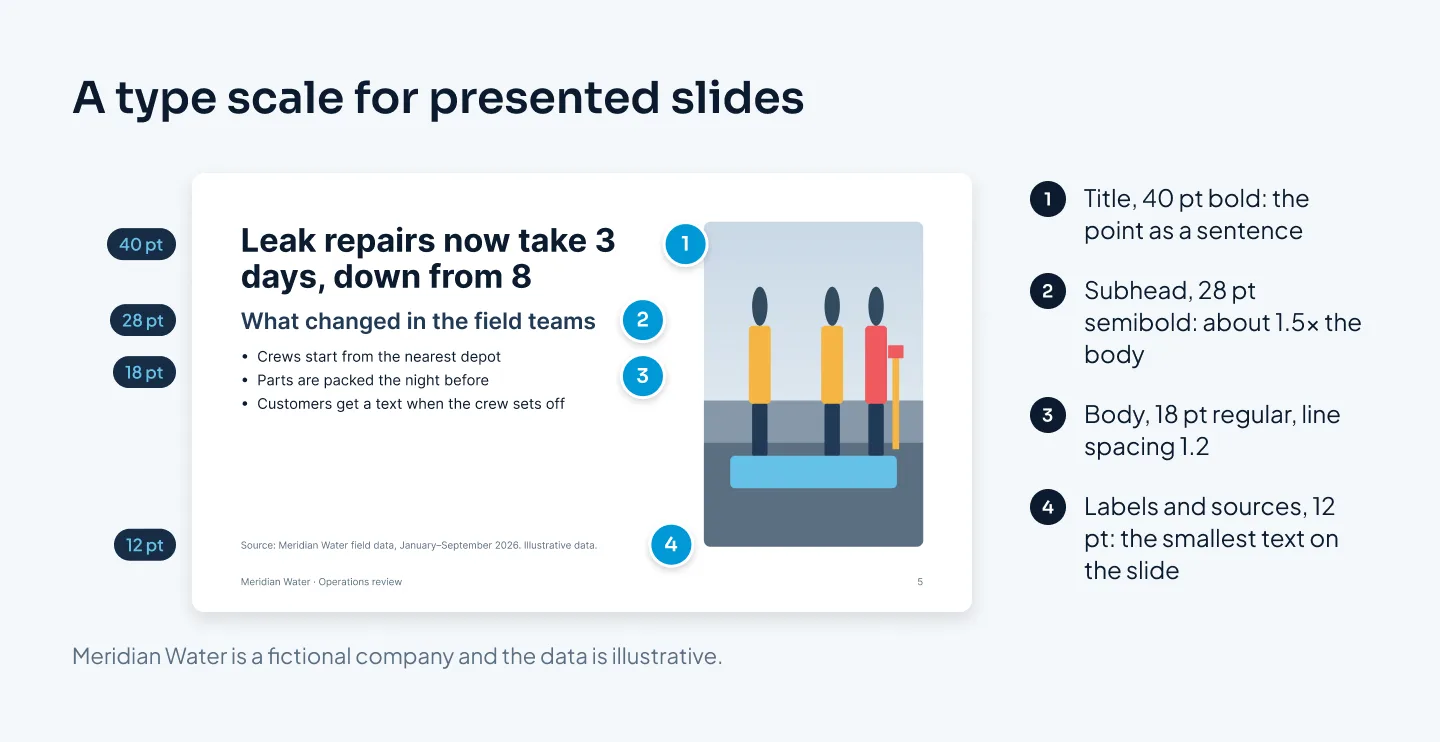
The starting sizes from our professional PowerPoint guide still apply. Here they are with the weights we pair them with:
| Text | Presented | Sent to be read | Weight |
|---|---|---|---|
| Slide title | 36–40 pt | 28–32 pt | Bold or semibold |
| Subhead | 24–28 pt | 18–20 pt | Semibold or regular |
| Body text | 18–20 pt | 12–14 pt | Regular |
| Labels and sources | 12 pt | 10 pt | Regular |
Four details make these sizes work:
Steps, not small differences. Each level is roughly one and a half times the one below: 12, 18, 28, 40. A 24 pt title over 20 pt body text doesn't read as a title.
The same point size looks different in different fonts. Fonts with a large x-height, such as Verdana, look bigger at the same size than fonts with a small one, such as Times New Roman. Judge the result on screen, not the number in the menu.
Two or three weights. Regular for reading, and bold or semibold for titles and the odd key phrase. Very thin weights are hard to read on screens and projectors, so keep them out of body text.
Bigger rooms, bigger type. On stage, start larger. Our guide to conference presentation slides treats any text that has to drop below about 24 pt as a sign the slide holds too much. Decks watched in a small video-call window need larger type too, as our guide to webinar slides explains.
Line spacing matters as much as size: about 1.1 for titles and 1.2 to 1.3 for body text. Big numbers on a KPI or traction slide sit outside the scale. They can run to 60 pt or more, because the number is the visual.
Fonts to avoid on slides
Some fonts that work elsewhere fail on slides:
Script and handwritten fonts. Hard to read on screens and projectors, especially in full sentences.
Novelty fonts. Fonts that imitate chalk, stencils or neon pull attention away from your point.
Very thin or condensed weights. Fine strokes disappear on projectors, and condensed letters crowd together at a distance.
Display fonts at body size. Fonts drawn for large headlines, such as Playfair Display, lose their fine strokes at small sizes.
Fonts only you have. A font installed on your computer and nowhere else gets swapped the moment someone else opens the file.
Too many fonts. Every extra font is one more thing to keep consistent. Two is enough.
Two habits make any font harder to read: long passages in all caps, and long passages in italics. Keep both for short labels and single words.
Before you commit to a font, check where it will work. The grid below covers the fonts in this guide.
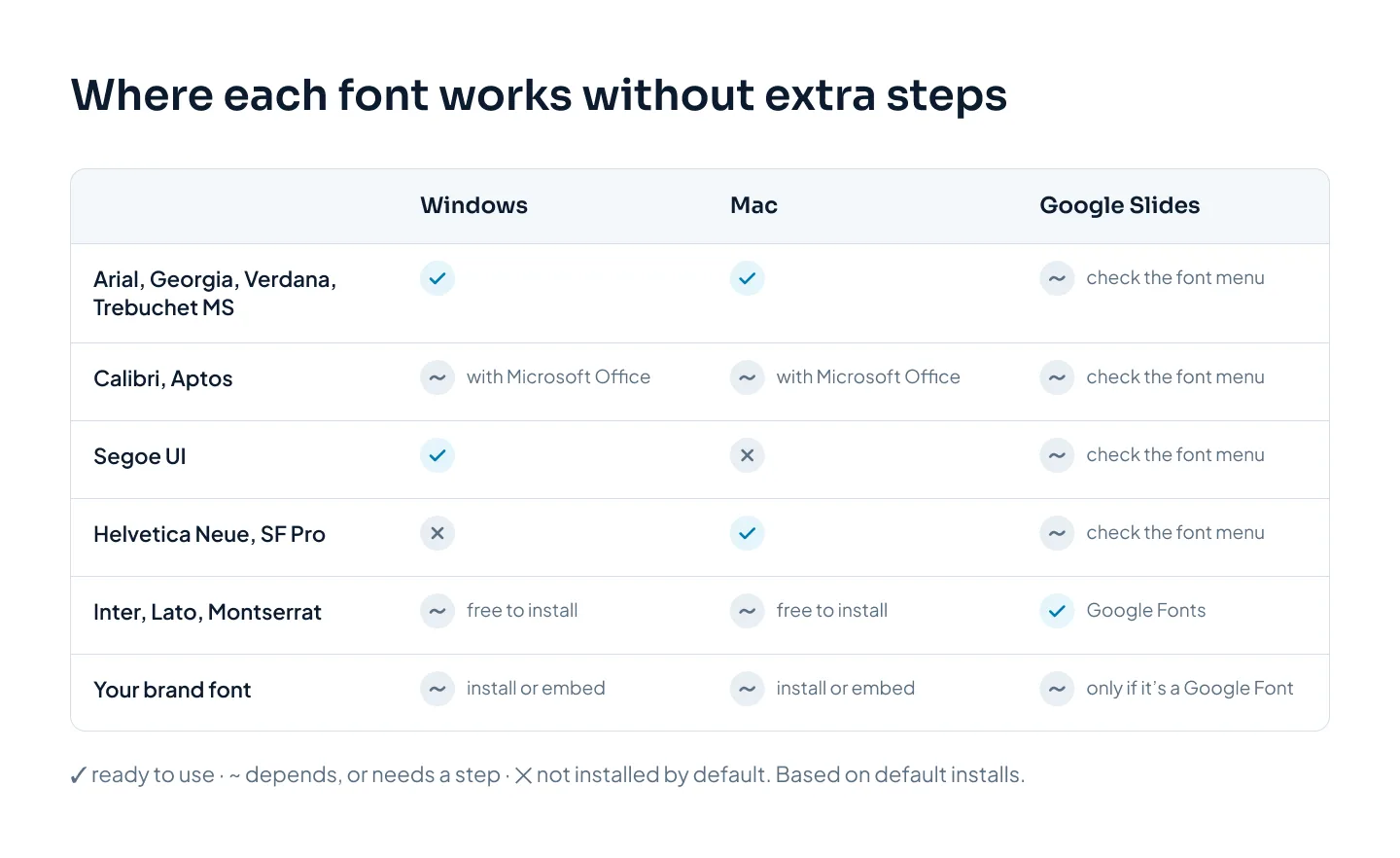
If a column that matters to you shows anything other than a check, plan the extra step now: install, embed or choose a fallback. Readable type is also part of an accessible deck, and our accessible presentations checklist covers the rest.
Set them once as theme fonts
Choosing fonts slide by slide is how decks end up with five of them. Set them once, in the theme.
In PowerPoint
Open View > Slide Master and select the top slide, the master.
Click Fonts, then Customize Fonts.
Choose a heading font and a body font, name the set and save it.
Theme fonts appear at the top of the font list, marked as headings and body. Every placeholder that uses them updates when the theme changes. Text set in a font picked by hand doesn't, which is how stray fonts survive a rebrand. On Windows, Home > Replace > Replace Fonts swaps every use of one font for another across the deck.
In Google Slides
Open Slide > Edit theme, select the master slide, and set the fonts for its title and body text there. The layouts follow the master, so new slides start with the right fonts.
In a template
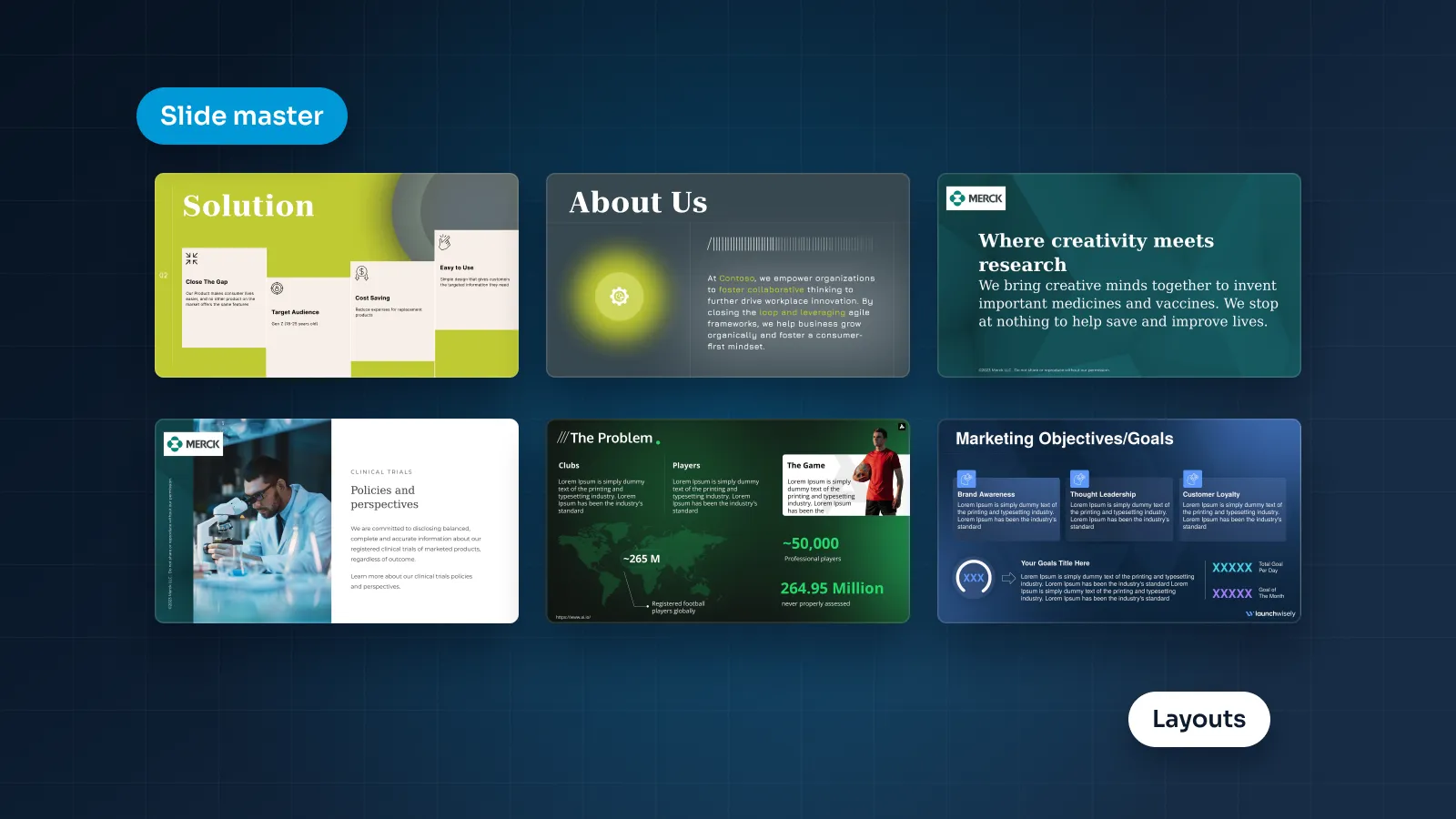
If your team builds decks every week, put the fonts in a template with the colors and layouts, so nobody has to remember the rules. Our Merck template system, a PowerPoint template for patient and clinical-trial content, pairs calm editorial type with layouts built on placeholders.
If you'd rather hand the whole deck over, our PowerPoint presentation design service sets up theme fonts on every deck. At Pixel Presentation, design is $10 a slide with a 5-slide minimum, and you get fully editable files.