
Most decks don't have a color problem. They have a color-job problem: the brand blue is used for body text, the accent appears on every slide, and each chart arrives in a rainbow of default colors.
Our guide to making a PowerPoint look professional gives the short version: five or six colors, used with rules, and one accent per slide. This guide goes further. It covers the jobs color does, building a palette from your brand, light and dark backgrounds, chart colors, contrast and theme colors. It ends with six starter palettes, with hex values you can copy.
The jobs color does on a slide
Every color on a slide should be doing one of these jobs:
Make text readable. Text needs a color that stands well clear of its background.
Set the stage. The background, and the light panels on it, set the tone and group content.
Show structure. The brand color marks section dividers, key headings and icons, so the deck feels like one company.
Point. The accent tells the eye where to look first: the key number, the recommended option, the bar that proves the title.
Carry data. In charts and status labels, color separates series or signals good and bad.
A color with no job is decoration, and it competes with the colors that do have one. When someone asks for "a bit more color", ask which job it would do.
Start from your brand
If your company has brand guidelines, the colors are already chosen. Guidelines usually give them as hex codes, such as #1E4FA0, and PowerPoint accepts hex codes under More Colors > Custom. If all you have is a logo, ask whoever designed it for the hex values, or sample the colors from the vector logo file.
Brand palettes are usually designed for logos, websites and print, not slides. So translate them into slide roles:
Choose one brand color for structure. It goes on dividers, headings and icons. Other brand colors become chart colors, not decoration.
Check whether it can carry text. Bright brand colors, such as yellow, light green or sky blue, often fail as text on white. Use them for large shapes, and choose a darker shade from the same family for text.
Find the accent. If your brand has a secondary color that's clearly different in hue from the main one, make it the accent. If not, choose one that is, and keep it rare.
Tint the neutrals. Grays with a hint of the brand hue, cool for a blue brand and warm for an earthy one, look more deliberate than default gray.
Resist using every brand color on every slide. A brand looks consistent through repetition, not variety.
Build a palette with roles
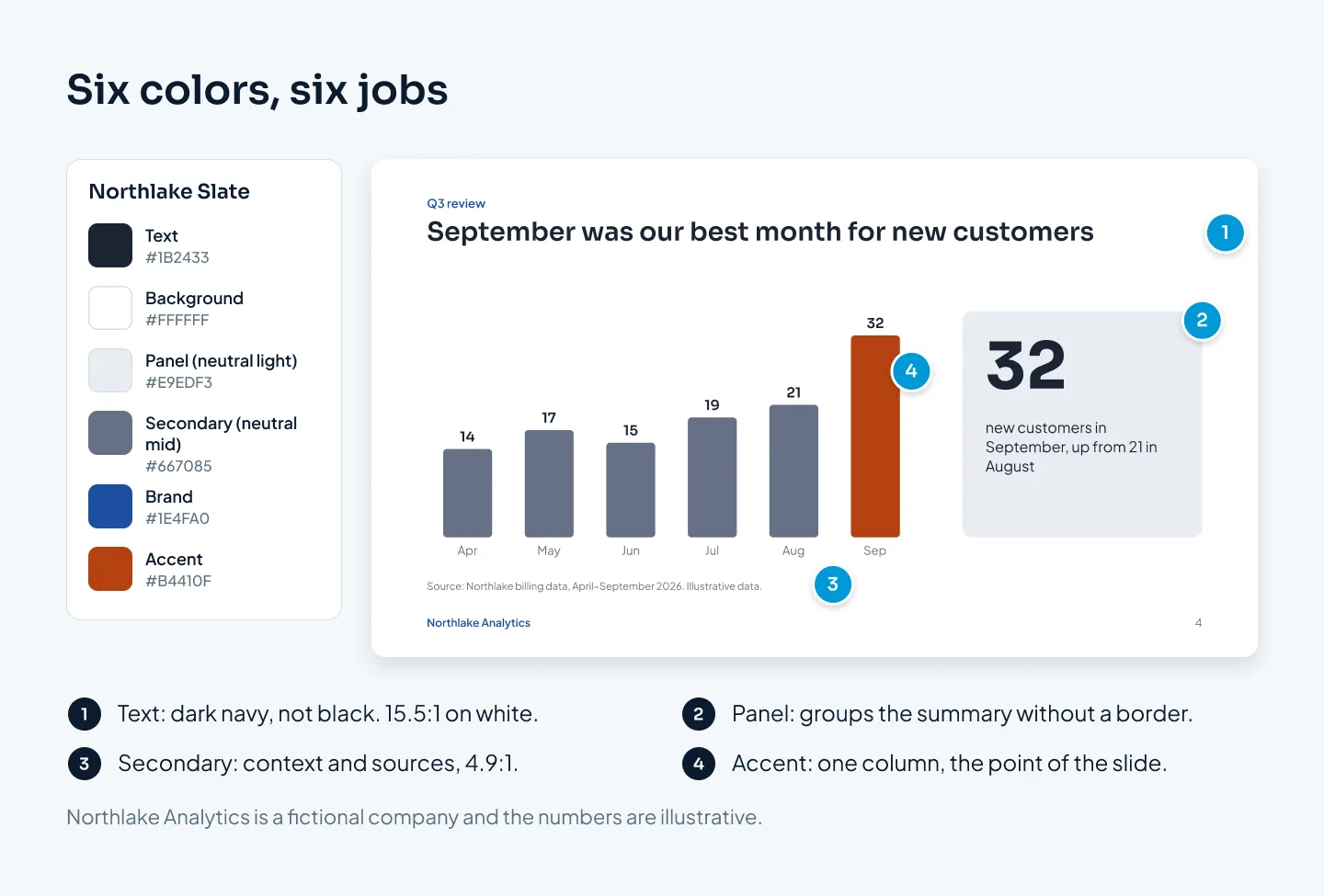
A working palette has five or six colors, each with one role. These are the six roles we build into most decks:
Text: a very dark navy, gray or brown rather than pure black, well above 4.5:1 on the background.
Background: white or off-white for most decks; a very dark gray or navy for dark ones.
Panel: a neutral one step away from the background, for cards, table fills and divider lines. Panels group content without borders. Text on a panel uses the text color.
Secondary: a mid neutral for source lines, labels and the gray series in charts. It still has to pass 4.5:1 on the background.
Brand: structure, as above. If it passes 4.5:1, it can carry headings, and background-colored text on a brand panel works too.
Accent: the one thing to notice, once per slide.
Use them in proportion
A common designer rule of thumb is 60-30-10: about 60% of the slide in a dominant color, 30% in a secondary color and 10% in the accent. On a light slide, that means mostly background and panels, then text and brand, then a small amount of accent. Treat it as a rule of thumb, not a law. A section divider filled with the brand color still works.
Most slides use only three of the six colors. When you need one more tint, such as a lighter panel, pick a shade of a theme color from PowerPoint's color picker rather than inventing a new color.
Light or dark backgrounds
Choose the background for where the deck will be seen, then keep it for every content slide.
Light backgrounds suit most business decks: meetings, decks read on laptops and phones, PDFs and anything that might be printed. They hold up in bright rooms and are easy to annotate.
Dark backgrounds suit stage talks, image-led decks and dark rooms, where a white slide glows like a lightbox and photos look richer on dark. Our guide to conference presentation slides covers designing for the room.
A dark palette isn't a light palette inverted. Four adjustments make it work:
Not pure black. Use a very dark gray or navy for the background, and off-white rather than pure white for text. Both are easier on the eyes in a dark room.
Lighter brand colors. A navy that works on white disappears on dark. Use a lighter version of the brand color that passes contrast.
Sturdier type. Very thin weights are hard to read on screens and projectors, so use regular and bold. Our guide to the best fonts for presentations covers weights in detail.
A plan for print. Dark slides print poorly and use a lot of ink. If the deck will also go out as a PDF or on paper, a light version is safer.
Section dividers can flip, such as a full brand-color divider in a light deck. Content slides shouldn't switch between light and dark.
Color in charts
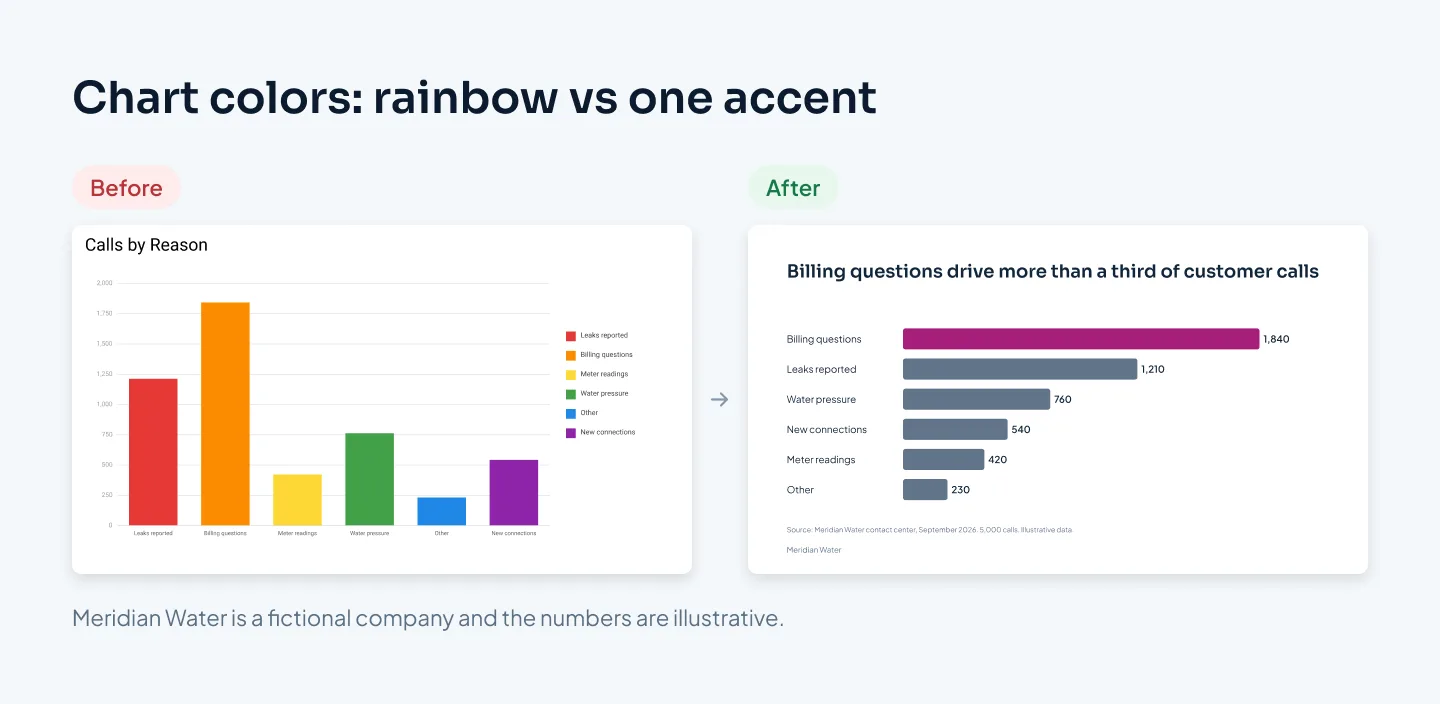
Charts are where color either carries meaning or adds noise. PowerPoint colors chart series with the theme's accent colors, in order, so a new chart arrives in your palette. It doesn't yet arrive with a point.
The approach that works on most data slides:
Gray first, accent second. Put every series in the secondary neutral, then give the accent to the bar, line or segment that proves the title.
Label directly. Put values and series names next to the data instead of in a legend, so nobody has to match colors.
Keep meanings fixed. If a product is blue on slide 4, it's blue on slide 12.
Use shades for order. Low-to-high values read better as light-to-dark shades of one color than as a rainbow.
Pair status colors with words. Red, amber and green need a label or symbol beside them, such as "Behind plan" or ▼. Some people can't easily tell red from green.
Limit distinct colors. If a chart needs more than four or five colors to separate its series, it's doing too much. Split it, or highlight one series and gray the rest.
Lines, bars and icons that carry meaning need a contrast of at least 3:1 against the colors next to them, under the WCAG 2.1 guideline on non-text contrast. Pale pastels on white usually fail it. Our guide to presenting data in PowerPoint covers chart choice and decluttering in more depth.
Contrast and color vision
Contrast is the one color rule with numbers attached. The WCAG accessibility guidelines ask for:
4.5:1 for normal text against its background.
3:1 for large text, which WCAG defines as 18 pt, or 14 pt bold.
3:1 for graphics that carry meaning, such as chart lines and icons, against adjacent colors.
The usual failures are light gray text on white, white text on a pale brand color, colored text on a colored panel, and text over a busy photo. Any free online contrast checker tests a pair of hex values in seconds. PowerPoint's Accessibility Checker (Review > Check Accessibility) flags low contrast along with other issues.
Contrast ratios measure the colors in the file, not the room. Projectors and bright rooms wash out pale colors, so a pair that barely passes on your laptop can struggle on the wall. Leave a margin, and test on the real screen when you can.
WCAG also says color shouldn't be the only way information is shown. Use labels, patterns, line styles or icons as well. A quick test: print one slide in black and white. If the point of the slide disappears, add a label rather than another color.
Our accessible presentations checklist covers the rest of an accessible deck, from alt text to reading order.
Set theme colors in PowerPoint and Google Slides
Theme colors turn a palette into a system. Charts, tables and SmartArt pull from them, and the color picker shows them at the top, with lighter and darker shades underneath.
In PowerPoint
A PowerPoint theme has 12 color slots: two dark and two light colors for text and backgrounds, six accents, a hyperlink color and a followed-hyperlink color.
Open View > Slide Master, then Colors > Customize Colors. Outside the master, it's Design > Variants > Colors > Customize Colors.
For each slot, open its menu, choose More Colors, then the Custom tab, and enter the hex code.
Name the color set and save it.
Here's how the six roles map to the slots, using the Northlake Slate palette from the end of this guide:
| Theme slot | Role | Northlake Slate |
|---|---|---|
| Dark 1 | Text | #1B2433 |
| Light 1 | Background | #FFFFFF |
| Dark 2 | Brand | #1E4FA0 |
| Light 2 | Panel | #E9EDF3 |
| Accent 1 | Brand | #1E4FA0 |
| Accent 2 | Secondary | #667085 |
| Accent 3 | Accent | #B4410F |
| Accents 4–6 | Extra chart colors | Shades of #1E4FA0 |
| Hyperlink | Brand | #1E4FA0 |
| Followed hyperlink | Secondary | #667085 |
Accent 1 colors the first series in a new chart, so it holds the color you most want seen: here, the brand. With this order, a new two-series chart starts in brand and gray, and the accent appears only where you put it.
One catch: anything colored with a theme color updates when the theme changes, but anything colored through More Colors keeps its exact value. That's how a stray blue survives a rebrand. Pick from Theme Colors whenever you can.
In Google Slides
Open Slide > Edit theme (or View > Theme builder), then Colors. Select each theme color in turn and enter its hex code. Your colors then appear in the theme section of the color menus on every slide that uses the theme.
In a template
A palette in one deck helps one presentation. A palette in a template helps every deck your team builds. Our guide to custom PowerPoint templates shows how theme colors, chart styles and layouts fit together. For an example, see the Contoso pitch deck template, a studio template built on a sample brand.
At Pixel Presentation, PowerPoint template design starts from $150, depending on the number of layouts and libraries, and takes 5–7 working days.
Six palettes to start from
These six palettes are our own, built for six fictional brands. Use one as it is if you don't have brand colors yet, or use them to see how the roles work before you build your own. Every value is a hex code you can paste into PowerPoint's Custom tab or Google Slides' theme builder.

| Role | Northlake Slate | Brightfield Calm | Calder Night |
|---|---|---|---|
| Text | #1B2433 | #1D2B2A | #F3F5F7 |
| Background | #FFFFFF | #FFFFFF | #14181E |
| Panel | #E9EDF3 | #E5F1EF | #252B34 |
| Secondary | #667085 | #61716F | #A0A9B6 |
| Brand | #1E4FA0 | #0D7068 | #7AB0F0 |
| Accent | #B4410F | #A3214F | #FFC53D |
| Role | Juniper Field | Harbor & Pine Linen | Meridian Clear |
|---|---|---|---|
| Text | #1F2622 | #2B2622 | #12263A |
| Background | #F8F6F1 | #FBF8F3 | #FFFFFF |
| Panel | #E9E5DB | #EFE8DD | #E3EEF6 |
| Secondary | #646B62 | #736A60 | #62748A |
| Brand | #1F5F4A | #6E2433 | #0A5A8A |
| Accent | #6B4FBB | #8A5A00 | #A61E7A |
What each one suits:
Northlake Slate (Northlake Analytics, B2B software): navy and blue with a burnt-orange accent. Software, finance and consulting decks.
Brightfield Calm (Brightfield Health, clinics): teal with a raspberry accent. Calm without feeling clinical.
Calder Night (Calder Robotics, factory robotics): the dark palette, for stage talks and trade shows, with a safety-yellow accent.
Juniper Field (Juniper Freight, logistics): deep green on warm off-white, with a violet accent.
Harbor & Pine Linen (Harbor & Pine, hotels): burgundy and brass on linen. Warm and editorial, for image-led decks.
Meridian Clear (Meridian Water, a utility): ocean blue with a magenta accent. Clear and public-facing.
We checked every recommended text pair. All of them pass 4.5:1, so each can carry normal-size text:
| Palette | Text | Secondary | Brand | Accent | Text on panel |
|---|---|---|---|---|---|
| Northlake Slate | 15.5:1 | 4.9:1 | 7.8:1 | 5.6:1 | 13.2:1 |
| Brightfield Calm | 14.6:1 | 5.1:1 | 5.9:1 | 7.2:1 | 12.6:1 |
| Calder Night | 16.2:1 | 7.5:1 | 7.8:1 | 11.2:1 | 13.0:1 |
| Juniper Field | 14.3:1 | 5.0:1 | 6.9:1 | 5.6:1 | 12.2:1 |
| Harbor & Pine Linen | 14.1:1 | 5.0:1 | 10.0:1 | 5.5:1 | 12.2:1 |
| Meridian Clear | 15.3:1 | 4.7:1 | 7.3:1 | 6.8:1 | 13.0:1 |
The first four columns are measured on the background. Contrast works both ways, so the brand figure also covers background-colored text on a brand-colored panel, such as white type on a Northlake section divider. Keep secondary text off panels: in the five light palettes, it drops below 4.5:1 on its panel.
If you swap in your own brand color, check it again. A lighter or brighter brand color can fall below 4.5:1, and then it belongs on large shapes, not text.
Every color on a slide needs a job, or it competes with the colors that have one.