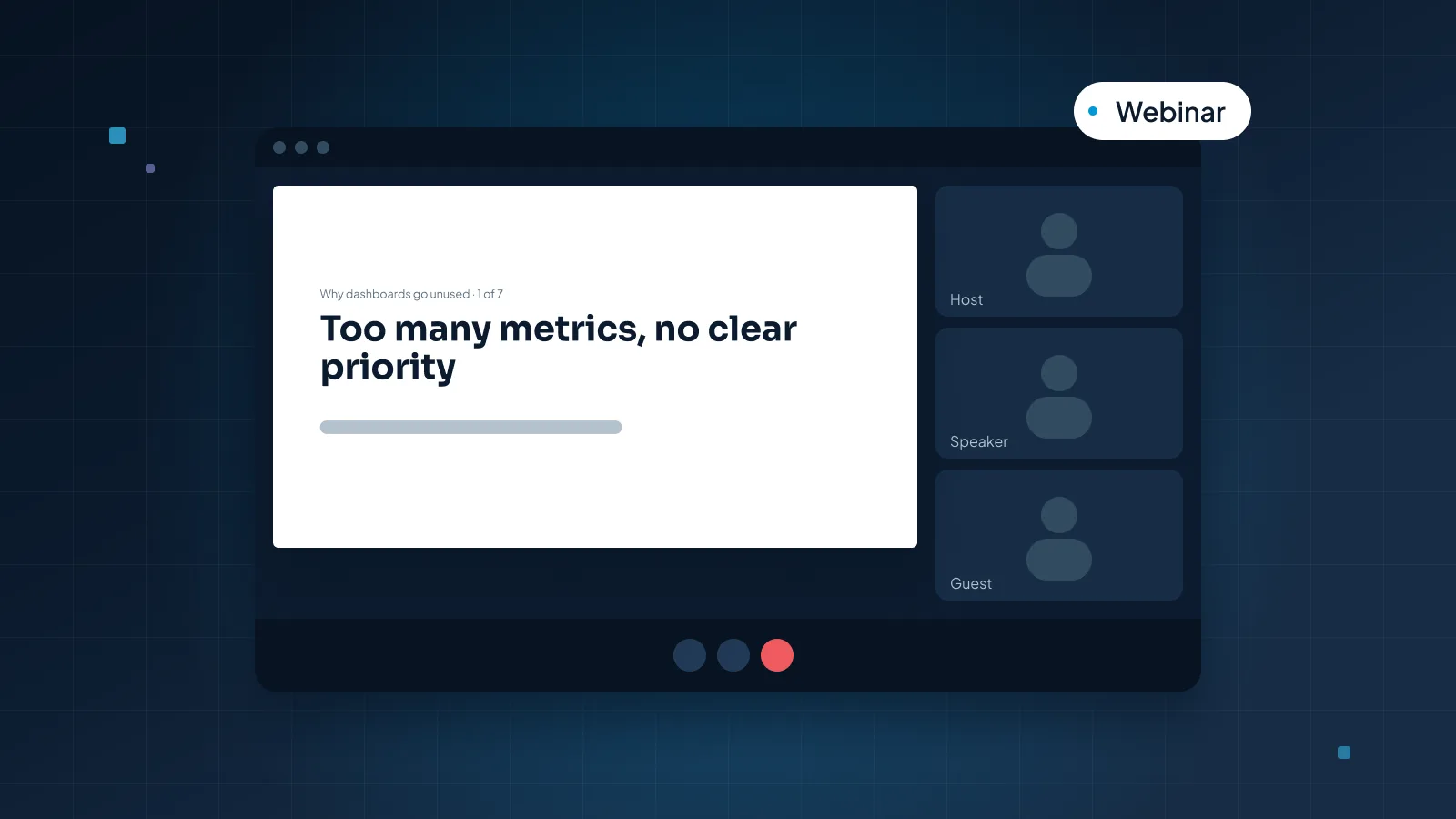
In a meeting room, people look at you. In a webinar, they look at a window, often a fraction of their screen, next to their inbox, a chat panel and your video. When a slide stops changing or gets too small to read, the next tab is one click away.
That's why a deck that works in a room often struggles online. This guide covers what makes webinar slides different and how to design for a small window. Then it covers pacing, the opening, polls and Q&A, clean screen sharing and the replay. The advice applies whichever video-call or webinar platform you use.
Why webinar slides are different
Three things change when a talk moves online.
The slide is the main picture. In a room, the audience watches you move and react. Online, your video is a small tile and the slide fills most of what viewers see. A slide that stays up for five minutes is a still image for five minutes.
Attention is one click away. Nobody sees a webinar viewer check email. A slide they can't read, or a point that drags, invites them to switch tabs.
The view is smaller than you think. Viewers watch on laptops, in shrunken windows or on phones, and screen sharing compresses the image. Text that looks crisp on your monitor can arrive soft and tiny on theirs.
A stage talk has the opposite problem: a huge screen, far away. Our guide to conference presentation slides covers the stage. If you're presenting to a room and an online audience at once, design for the small window first; a slide that reads there will read on the big screen too.
Adapting a stage talk for a webinar is usually easier than adapting a meeting deck, because stage slides already carry one idea each. You mainly add the opening, interaction and closing slides described below, and check that any text over photos still reads at a small size. For an example of a stage deck, see the conference keynote deck we designed for The Aligned Mindset.
Design for a small window
Design as if every viewer sees your slide at a fraction of a laptop screen, because many will.
Type larger than a meeting deck
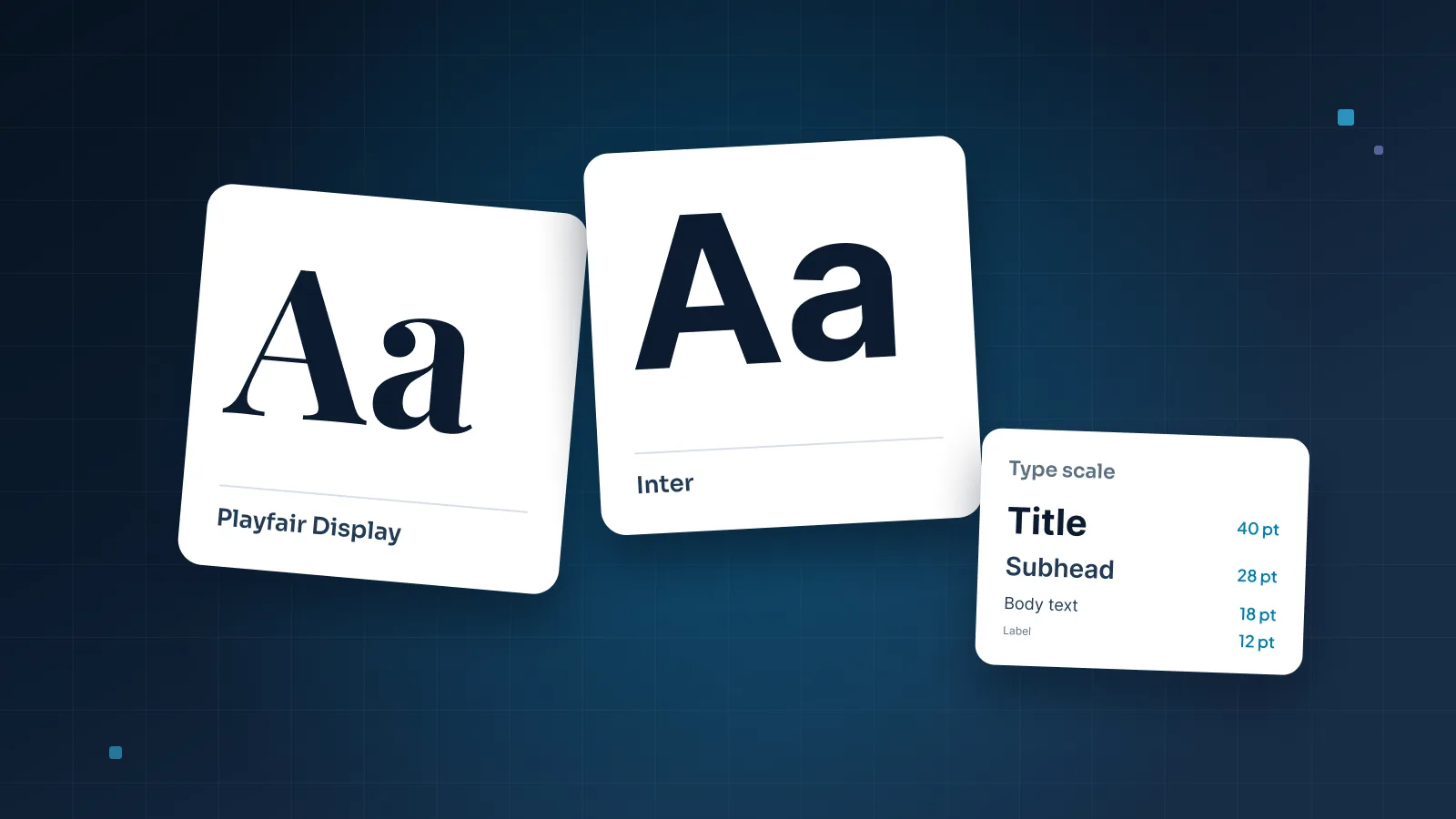
These are the sizes we start from for webinar slides, next to the starting points for a deck presented in a meeting room:
| Text | Meeting room | Webinar |
|---|---|---|
| Slide title | 36–40 pt | 40–48 pt |
| Body text | 18–20 pt | 24–28 pt |
| Labels and sources | 12 pt | 16 pt |
Choose regular or bold weights. Thin and light weights break up when the image is compressed, and so does light gray text.
If a co-presenter will share the deck from their own computer, check that your fonts are installed there. If a font is missing, PowerPoint substitutes another one and line breaks move. Fonts such as Arial, Georgia and Verdana are installed on both Windows and macOS; our guide to the best fonts for presentations covers safe choices and embedding.
Fewer words, one point per slide
A webinar slide should be readable in the few seconds after it appears. Give each slide one point, state it in the title and support it with a visual or up to three short lines. Detail goes in your voice, your notes or the PDF you send afterwards.
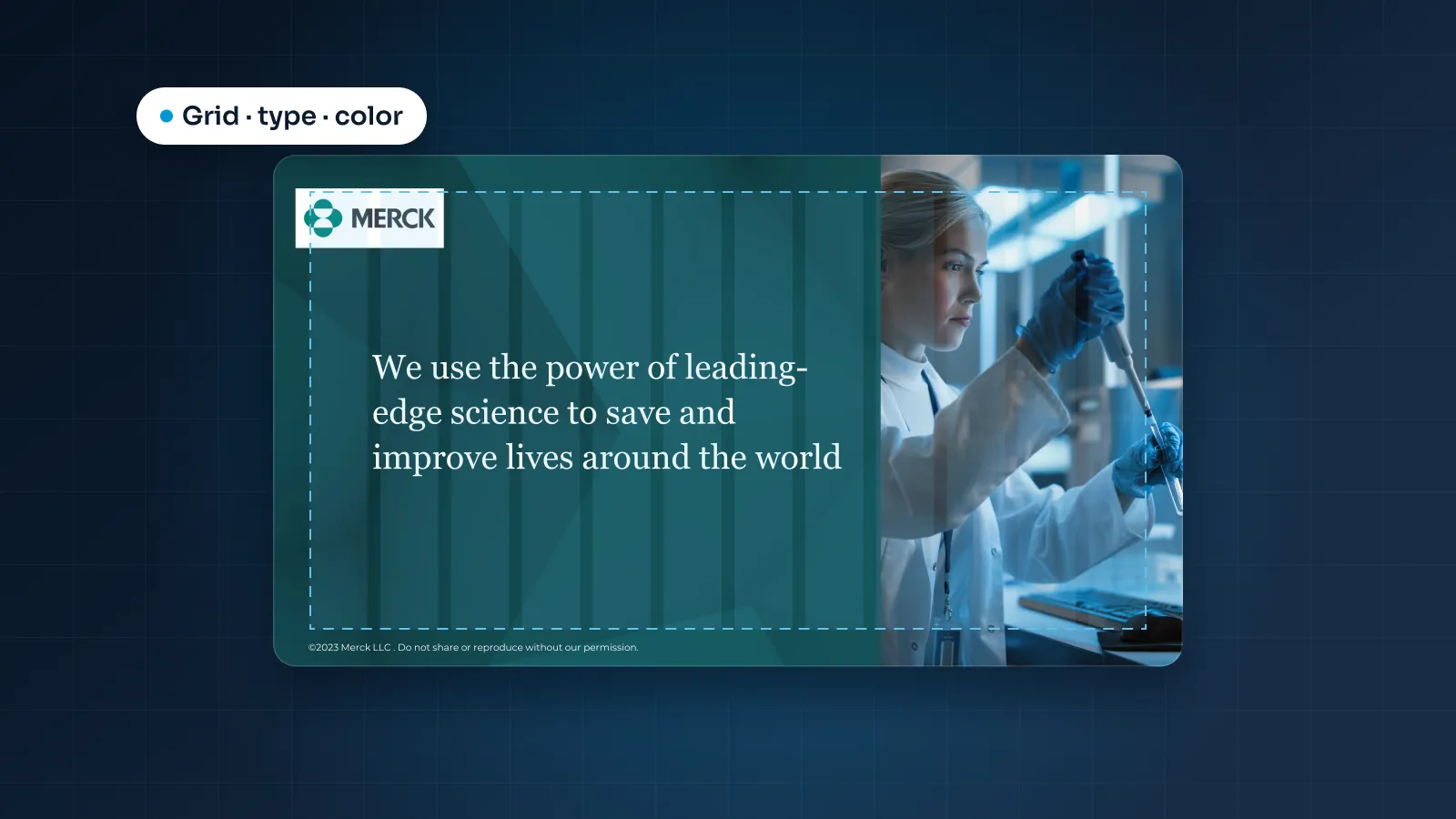
Everything in our guide to making a PowerPoint look professional still applies: a grid, two fonts, one accent color. Webinar slides push each rule a little further.
Contrast that survives compression
Low contrast fails first on a small, compressed image. Treat the WCAG minimums as the floor: 4.5:1 for normal text and 3:1 for large text. In charts, label lines and bars directly rather than relying on color alone, so a viewer on a dim laptop screen can still tell them apart.
Keep the edges clear
Depending on the platform and how each viewer arranges their screen, speaker videos, names or controls can sit beside or over part of your slide. Keep a generous margin, and don't put anything essential in the corners or along the bottom edge.
Test at viewer size
Shrink your slideshow window to a quarter of your screen, or join your own rehearsal from a second laptop or a phone. If you can't read the main point at that size, neither can your audience.

Change slides more often
In a room, a speaker can hold one slide for several minutes because people are watching the speaker. Online, the screen needs to move.
A useful rule of thumb: if a slide would stay on screen for more than two minutes, split it or build it in steps.
Split dense slides. A slide with five points becomes five slides with one point each. The talk takes the same time, but the screen changes five times.
Build in steps. Reveal list items, chart highlights or diagram stages as you reach them. Simple builds such as appear or fade travel well over a screen share; heavy motion can look choppy.
Show where you are. Section dividers and a small progress marker, such as "Part 2 of 3", answer the question every multitasking viewer has: how much is left?
Alternate slide types. Follow a run of text slides with a chart, a photo, a poll or a short demo.
Hand over at section breaks. With two presenters, a new voice marks a new part as clearly as a new slide does.
Expect more slides than the same talk would need in a meeting room. Each one simply carries less.
Open well: title, housekeeping, agenda
The opening minutes set the pace for the whole session. Use them to show people they're in the right place and what they'll get, not to tell your company history.
The holding slide
People join over several minutes. Leave a holding slide up while they do: the webinar title, the start time with its time zone, and a line such as "We'll start at 2:00 pm ET. Check your audio, and add questions to the Q&A at any time."
Title and speakers
One slide with the title, the outcome you're promising and the speakers, each with a photo, name and role. Keep each introduction to one line; credibility comes from the content.
Housekeeping
One slide, under a minute: how to ask questions, whether the chat is open, that the session is recorded and a replay will follow, whether captions are on and when you'll finish.
Agenda
Three or four parts, what viewers will leave with and when the Q&A happens. Bring the agenda back, smaller, at each section break with the current part highlighted. That's the visible structure that keeps people oriented.
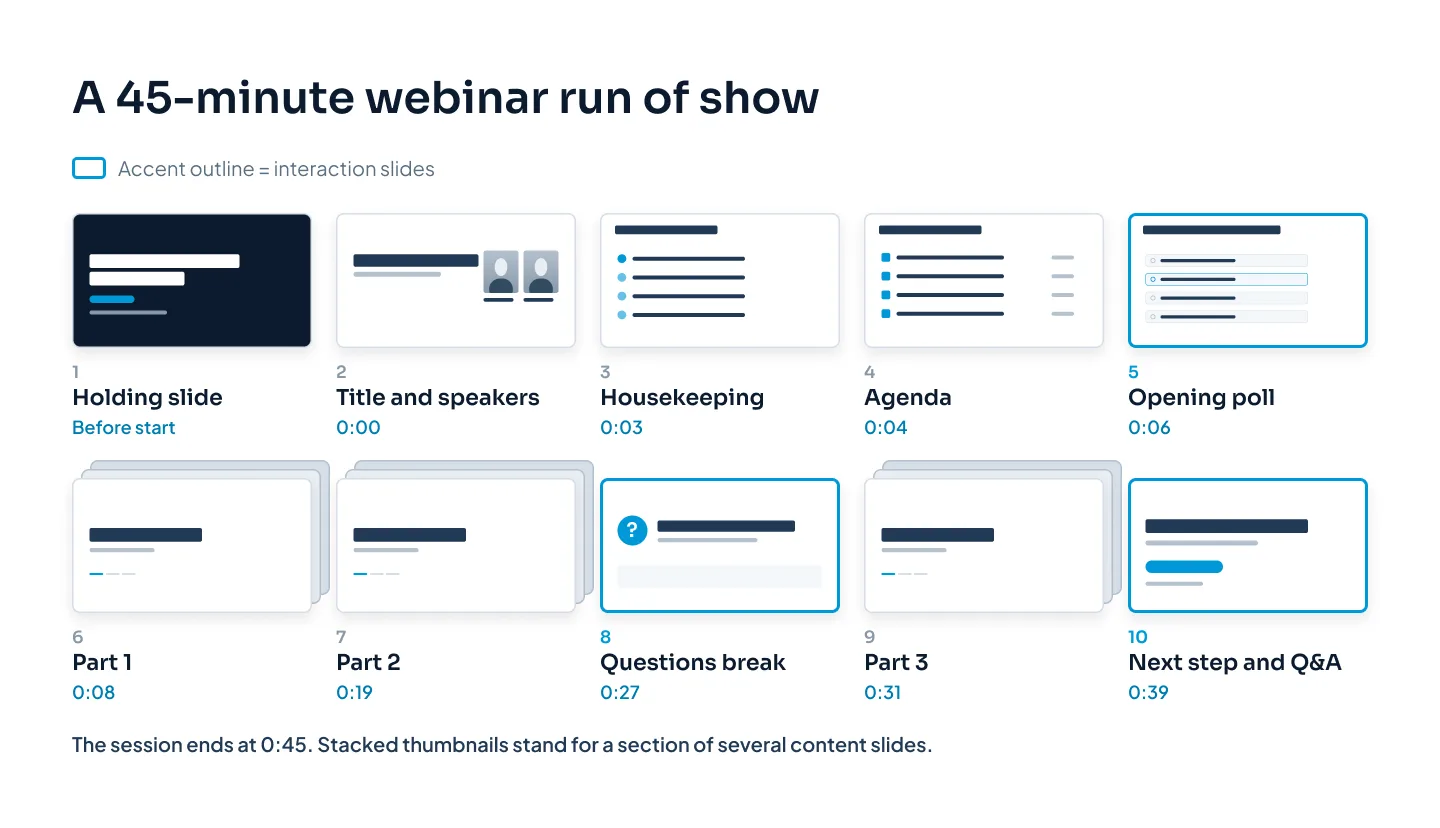
Here's how those pieces fit into a 45-minute run of show.
Interaction slides: polls and Q&A
Interaction gives viewers a reason to keep your window in front. Most platforms let you run polls and take questions; your slides should make those moments obvious.
Poll slides
Introduce each poll on a slide that shows the question and options exactly as they appear in the platform's poll. Viewers who missed the pop-up can still follow.
Keep the slide up while voting is open, and say how long it stays open.
Show the results on a slide. Rebuild them as a simple bar chart on the next slide, so the replay and the PDF include them.
Use the answer. If most people pick one option, say so and adjust what you spend time on.
Ask questions that change what you present or that viewers want to compare themselves against. "Can everyone hear me?" isn't a poll.
Q&A slides
Plan Q&A breaks, not only one session at the end. A short break after a main part catches questions while they're fresh.
Use one Q&A layout that keeps the section's key point visible, so the answers have context.
Have a moderator watch questions and chat, group similar ones and pass them to the speaker.
End on the next step. Leave the call-to-action slide on screen during the final Q&A instead of a "Thank you" slide, so the next step is in front of viewers for the last minutes.
Make interaction slides recognizable
Give poll, chat and Q&A slides their own layout: one color, one icon, the question always in the same place. After the first one, viewers learn that the layout means "your turn".
Screen sharing and presenter view
How you share matters as much as what you share. Most platforms let you share either one window or your whole screen.
Share one window, not your whole screen. Sharing only the slideshow window keeps notifications, other tabs and your speaker notes out of view.
Use Presenter View for notes. PowerPoint's Presenter View shows your notes and the next slide on one screen while the audience sees only the slide. With two monitors, keep Presenter View on your screen and share only the screen or window that shows the slideshow.
One monitor? Play the slideshow in a window. PowerPoint can run the slideshow in a resizable window: choose "Browsed by an individual (window)" in Set Up Slide Show. Share that window, and everything else on your screen, such as notes open in the editing window, stays private.
Turn off notifications and close anything you don't need, so nothing pops up or makes a sound mid-sentence.
Agree who advances slides. If a producer clicks for you, mark each cue in your notes and rehearse together.
Test on the platform you'll use. Join your rehearsal as an attendee from a second device and click through every slide: fonts, builds and any video with its sound. Video played through a screen share can stutter or arrive without audio, so keep clips short and test each one.
Write notes for a glance: the slide's point, the link to the next slide, poll cues and a time check at each section break.
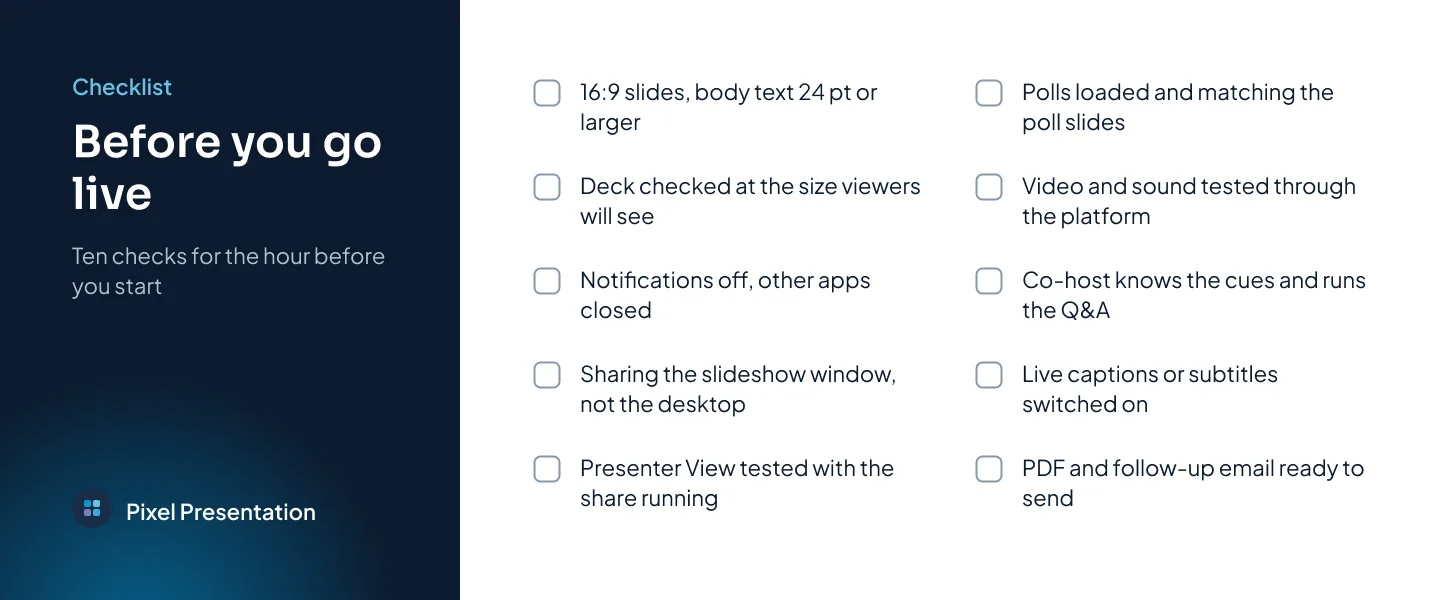
Run through these checks in the hour before you start.
The replay and the follow-up
Some of your audience will only ever see the replay, and some live viewers will come back to it. Build the deck so it works when nobody is live.
Keep live-only instructions in your voice. Say "vote now"; let the slide show the question, then the result. Both read well in a replay.
Turn on captions. PowerPoint for Microsoft 365 can show live subtitles while you present (Slide Show, then Always Use Subtitles), and Google Slides has live captions in presenter mode. Our guide to accessible presentations covers captions, contrast and alt text.
Send the slides as a PDF. Give key slides full-sentence titles, write links as meaningful text rather than bare web addresses, and put the next step on the last page. Check that the PDF reads on a phone.
Follow up while the session is fresh. Send the replay, the PDF, answers to questions you didn't reach and the one next step.
Reuse the best slides. Poll results, a clear framework or a strong before and after can become a short guide or a module in your sales deck. If your webinar launches a product, our guide to product launch presentations covers the story, the demo and the launch kit.
If you'd rather hand the deck over, our event presentation design team can build it.