A launch gets one first impression, and several audiences form it in the same week. Your sales team needs to sell the product, a journalist needs to describe it accurately, and customers watching the event need to want it.
This guide covers how to plan those decks from one story and how to show the product on slides. It also covers price and availability, and what changes when the event is streamed. For the stage itself, such as type sizes for a big screen and the venue's screen spec, see our guide to conference presentation slides. This post covers what's specific to a launch.
One launch, three decks
Most launches need three decks. They share one story and one set of facts, but each has a different audience and a different job.
Internal enablement
Sales, support, customer success and partners need to understand the product before anyone outside does. This is the most detailed deck: who the product is for, how it's priced, how it compares, what it doesn't do yet and how to answer the obvious questions. It's usually presented in a training session and then kept as a reference.
Be candid here. A rep who learns about a limitation from a customer, instead of from you, loses trust on both sides.
Press and analysts
Journalists and analysts are often briefed before launch day, sometimes under embargo. They need a short deck that makes the story easy to report accurately: the one-line description, what's new, who it's for, availability, price and any customer evidence you're allowed to share.
Keep the tone factual. Superlatives rarely survive into an article; specifics do. This deck is often sent on afterwards, so it has to work without you, with full-sentence titles and a fact sheet at the end.
Customer event or livestream
This is the public moment: a keynote, a customer event, a livestream, or all three at once. It's the deck with the fewest words and the most product: the story, the reveal, the demo, the price and the next step.
Build the decks in that order. Internal teams need the most time to prepare, and writing the detailed version first exposes any gap in the story before the press sees it.
The launch story
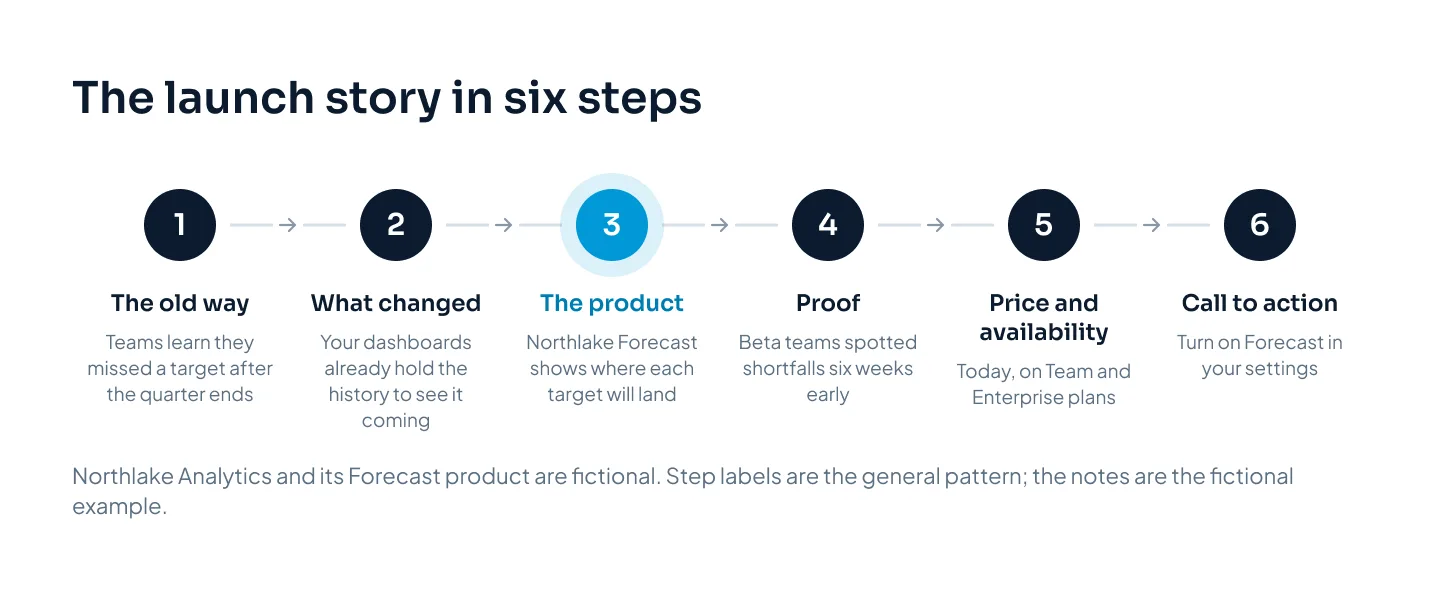
Every launch deck, from sales training to the keynote, can follow the same six steps. Change the depth for each audience, not the order.
The old way. What customers put up with today. Make it specific enough that they recognize their own week in it.
What changed. Why a better way is possible now: a new capability, a shift in how customers work, something you learned from them. This step makes a launch feel like news rather than a feature update.
The product. The name, one line on what it does and for whom, then the reveal.
Proof. The product working: a demo, results from beta customers who agreed to be named, a before and after.
Price and availability. What it costs, who can get it, when and where.
Call to action. One next step for this audience.
Hold the product name until the audience understands the problem it solves. A name revealed on slide one is just a word; the same name after two slides of recognizable pain is the answer people were waiting for.
Before you design anything, write the one sentence you want repeated: the product's name, what it does, for whom and what makes it different. Put it, word for word, on the reveal slide, in the title of the press deck and on the first slide of the internal deck. When three decks use three versions of the line, nobody knows which one to quote.
If your launch doesn't fit this shape, our guide to storytelling frameworks for business presentations covers other structures, such as before, after and bridge.
Hold the name until the audience understands the problem it solves.
Show the product, don't describe it
Adjectives on a slide ask the audience to trust you. A clear view of the product lets them see for themselves.
Crop the screenshot
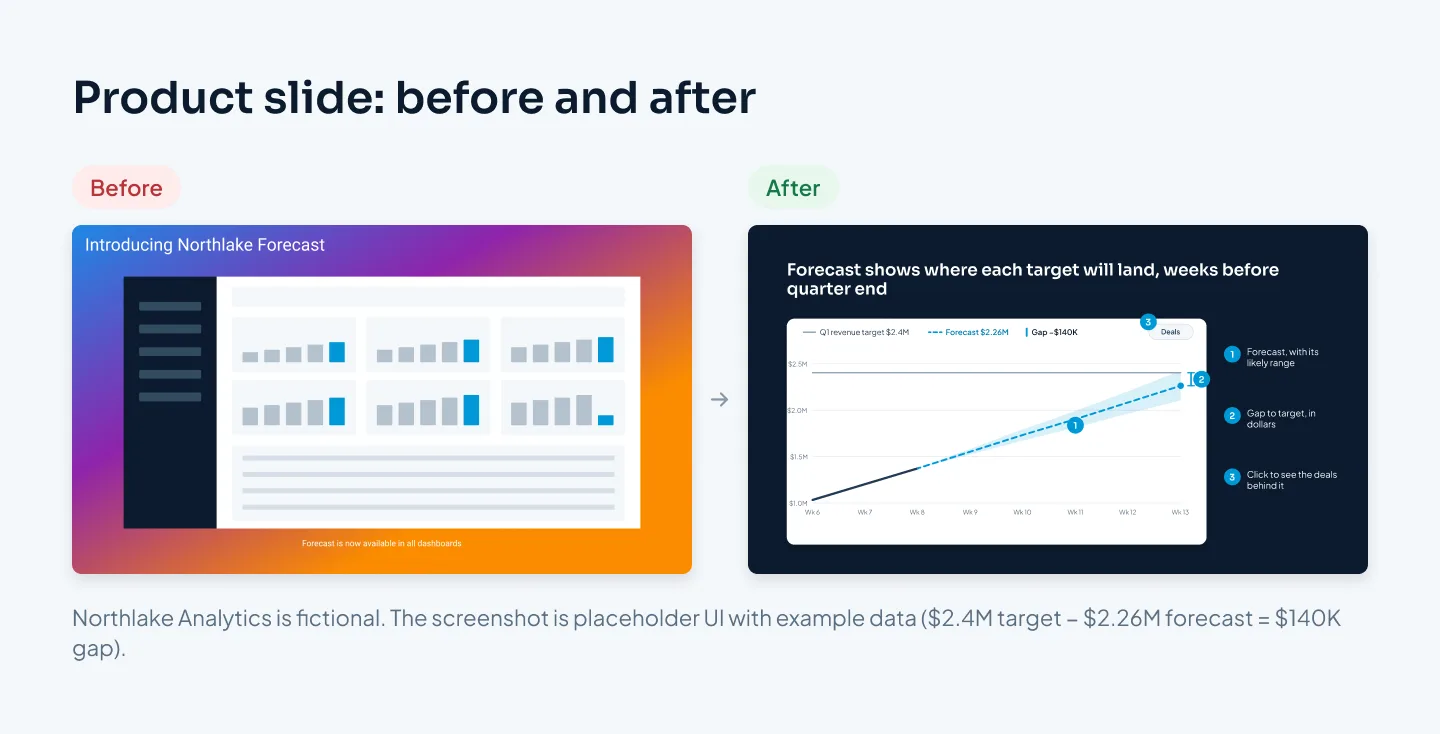
A full-screen screenshot shrunk onto a slide is unreadable past its first row. Crop to the part that matters, enlarge it until its text is readable from the back of the room, and label two or three things with callouts. If the audience needs the whole screen for context, show it briefly, then move to the detail on the next slide.
Use real product screens with clean, realistic example data. If a screen isn't finished, label it as a preview. A mock-up presented as the shipping product is the kind of detail a journalist notices.
Keep the demo short
A live demo is convincing and risky. If you demo live, follow one scripted path through a dedicated demo account with clean data. Show the one workflow that proves the promise, not every feature.
Keep a recorded version of the same demo embedded in the deck, on the slide that follows the live handover. If anything stalls, you click forward and carry on. On a livestream, the recorded version is often the better choice anyway, because it's sharper and paced to the second.
Use motion to explain
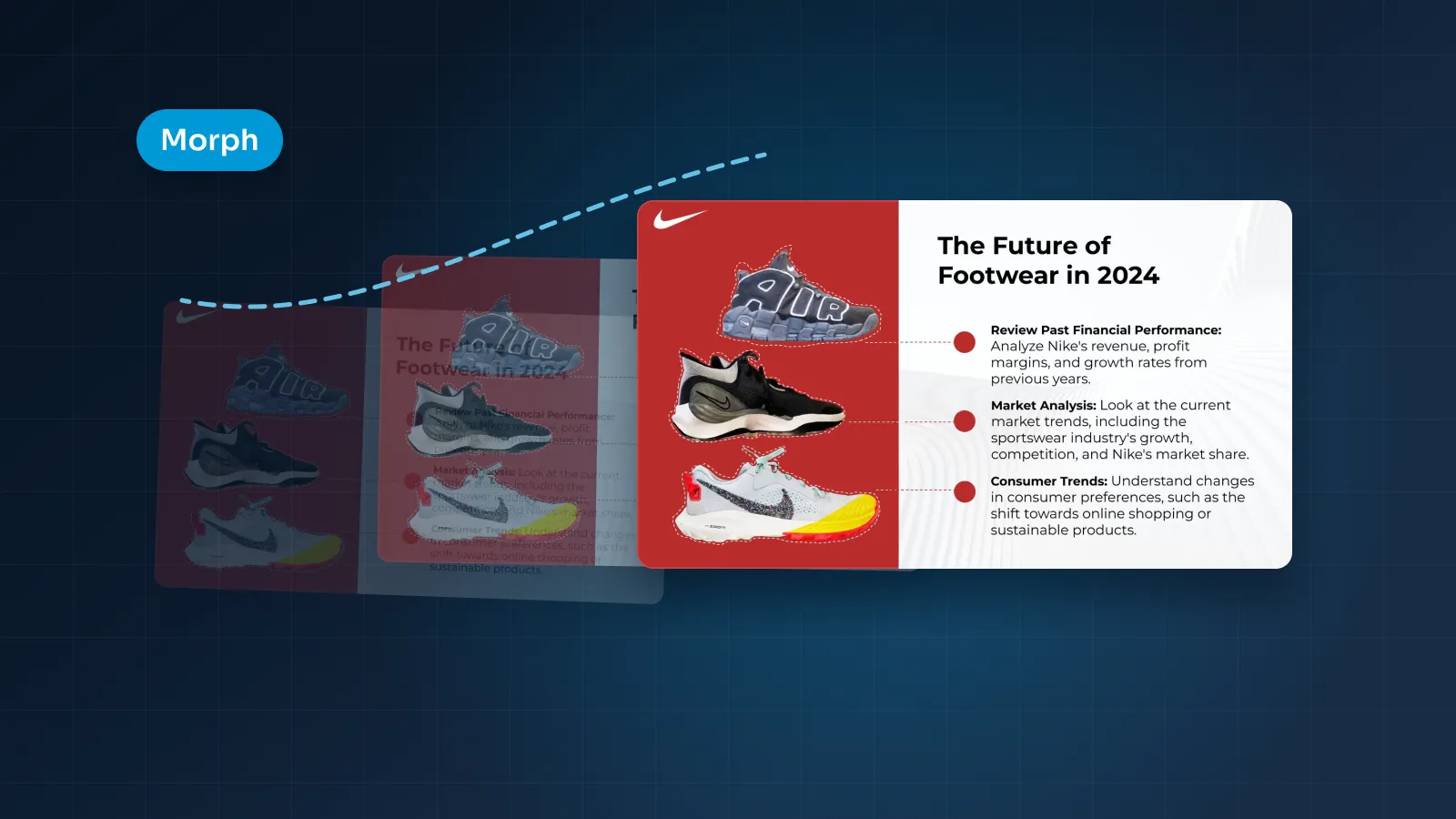
Motion earns its place when it explains: zooming from a whole dashboard into the one chart that matters, moving a product into position, or showing before and after on the same screen. PowerPoint's Morph transition does this well; it needs PowerPoint 2019 or later, or Microsoft 365. Our guide to PowerPoint animation and Morph covers when motion helps and when to leave it out.
For physical products, 3D models let the audience see the product from every side. Our Nike "Future of Footwear" presentation is an example, built in PowerPoint with 3D shoe models and Morph transitions.
Price, availability and the call to action
Audiences leave a launch with three questions: how much, when can I get it, and what do I do now? Answer all three on screen, plainly.
Price. State it, with what's included and any launch offer with its end date. If pricing is by quote, say so rather than leaving it out.
Availability. The date, the regions, the plans or customer groups that get it first, and any waitlist. "Available today on Team and Enterprise plans" answers more than "Coming soon".
Call to action. One step for this audience: start a trial, book a demo, join the waitlist or talk to your account manager. Put a short web address or a QR code on the slide, large enough to use from the back row or a phone screen.
Make the call-to-action slide the one you leave up during questions, and the last page of the press and customer PDFs.
Keep these facts identical across the three decks, the website and the press release. Agree them early, write them on one fact sheet and treat that sheet as the source for every slide. A different date in the press deck and on stage becomes the story.
Designing for the stage and the stream
Many launches happen in a room and on a livestream at once, and the two audiences see your slides differently. In the room, slides fill a large screen. On the stream, they're one part of a video frame, often shown smaller beside the speaker, sometimes with a name banner or captions over them, and watched on a laptop or a phone.
Design for the smaller view, and the big screen usually takes care of itself:
Ask the production team for the stream layout. Find out whether slides appear full frame, beside the speaker or as a small inset, and where overlays such as names and captions go. Keep text and product detail out of those areas.
Fewer words, larger type. If a slide still reads at a quarter of your laptop screen, it will read on the stream.
Dark, calm backgrounds. In a darkened hall, a dark slide with a lit product image looks deliberate in the room and on camera. A full-screen white slide can glare in both.
Agree the reveal with the director. If the stream cuts to a wide shot of the speaker at the moment of the reveal, remote viewers miss it. Mark in the run of show when the slide must be on the stream.
Send product films separately as well. Embed them in the deck, and also give the production team the video files, so they can play them directly into the stream if needed.
The venue side, from screen specs and LED walls to packaging fonts and testing on the venue computer, is covered in our AV handoff checklist for conference slides. If your launch is online only, our guide to webinar slides covers designing for a small window, polls and Q&A.
Rehearsal and the run of show
A launch event runs on a run of show: a timed script of who's on stage, which slide or video is up and what happens at each cue. Your deck is one part of it, so build the two together.
Number your cues. Give each slide and video a cue number that matches the run of show, so the person running slides and the director work from the same list.
Mark the moments. Note the reveal, the demo handover, every video with sound and the call-to-action slide, and who triggers each one.
Rehearse the joins. The riskiest moments are between things: speaker to demo, demo back to slides, one speaker to the next. Rehearse those handovers more than the talks.
Run it on the real setup. Do at least one full rehearsal with the venue computer, the clicker, the demo machine and the stream.
Freeze the deck. After an agreed deadline, changes go through one person and get a new version number.
Have a fallback for every live element. A recorded demo for the live one, a PDF for the deck, a still image for each video.
The launch kit
After launch day the slides keep working. Sales will reuse them, partners will ask for them and people will watch the replay long after the event. Package a launch kit so nobody has to take screenshots of your keynote:
The customer deck, editable, built on your slide master, so the launch slides drop into your existing sales deck as a module. Our sales deck structure guide explains how a modular sales deck works.
The press deck as a PDF, with the fact sheet, approved quotes and image credits.
Product images and screenshots at full resolution, with the cropped versions.
The demo video and product films, plus a video export of the animated keynote if you want a version that plays anywhere.
The internal FAQ and the objection answers from the enablement deck.
A one-slide summary partners can add to their own decks.
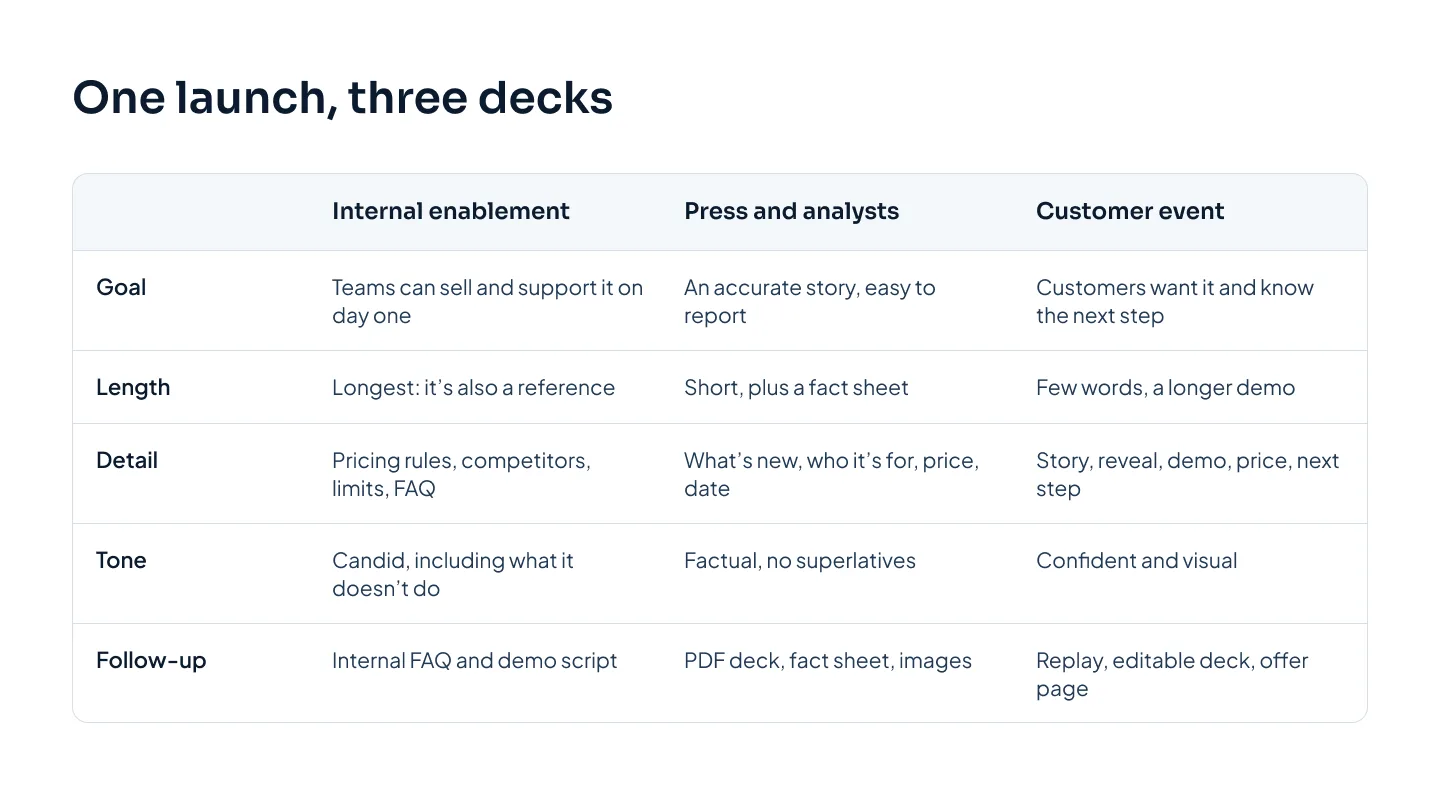
Here's how the three decks compare, including what each one leaves behind.
If you'd rather hand the decks over, our event presentation design team builds launch decks sized for your venue's screen.