

Most infographic slides go wrong before anyone opens PowerPoint. Someone picks a template with five colorful arrows, then forces three steps and a list of risks into it. The slide looks busy and still doesn't explain anything.
A good infographic slide starts from the information. This guide shows how to pick the right shape for what you're saying, build it from PowerPoint's own shapes, use SmartArt without getting stuck with it, and keep the whole thing editable. It ends with step-by-step builds for the two diagrams business decks need most: a process and a timeline.
What an infographic is on a slide
On a slide, an infographic is a diagram that shows the shape of your information. Steps in order become a process. Dates become a timeline. Two options become a comparison. A reporting line becomes a hierarchy.
That's different from the long, scrolling infographics people share online. A slide infographic has one job: make a structure visible in a few seconds, so the audience grasps the relationship before you explain it.
Three things it isn't:
Decoration. Icons and colored circles around a bullet list don't show a relationship, so they're noise.
A chart. Charts show quantities: how much, how many, how they change. For a series of numbers, our guide to presenting data in PowerPoint covers how to choose and design one.
Everything at once. One slide, one structure. A process and a timeline are two slides.
The rules that make a PowerPoint look professional apply here, only more strictly: a grid, two fonts, a small palette and one accent. Diagrams magnify inconsistency, because the eye compares every shape with its neighbors.
Choose the shape of your information
Before you draw anything, write down what you're showing and ask one question: how do these items relate to each other? The answer picks the shape.
| Your information | Shape | How it usually looks | Watch out for |
|---|---|---|---|
| Steps that happen in order | Process | 3–6 chevrons or numbered boxes, left to right | Items that don't really follow each other |
| Events or plans over time | Timeline | One line with dated milestones | Spacing that distorts time |
| Two to four options | Comparison | Columns with the same rows in each | Different criteria per option |
| Levels, teams or parts of a whole | Hierarchy | A tree or nested boxes | More than three levels on one slide |
| A loop that repeats | Cycle | 3–6 steps around a circle | A one-way process drawn as a loop |
| A few headline results | Big numbers | 2–4 large numbers with short labels | Numbers without a period or source |
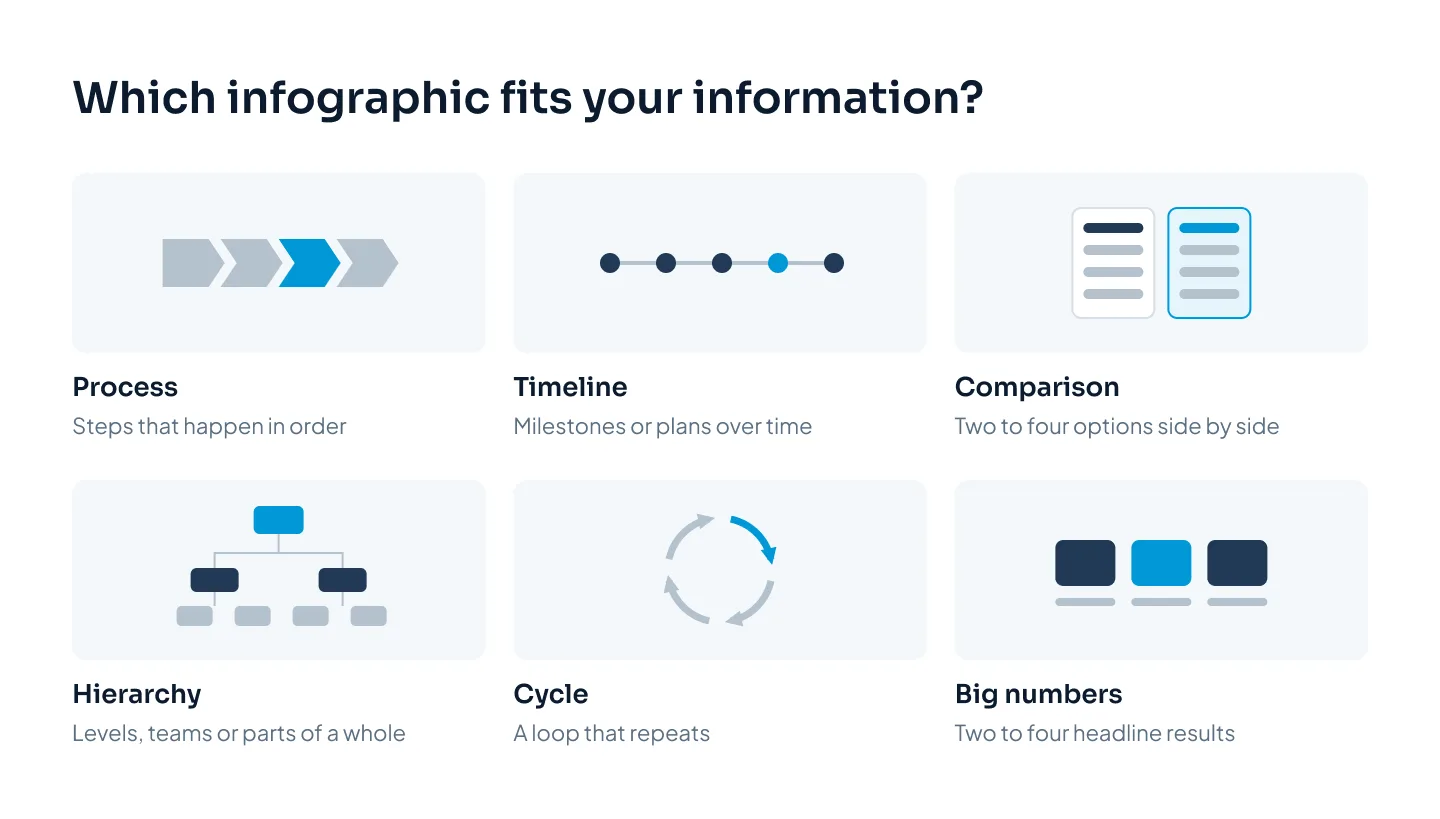
Two checks help when you're unsure:
Does order matter? If the items could be shuffled without changing the meaning, it isn't a process or a timeline. A comparison or a simple grid will do.
Does it end? A process ends with an outcome. A cycle comes back to the start, like a monthly review that feeds next month's plan. Most business processes end, so most cycle diagrams in business decks should really be processes.
If none of the six fits, you may not need an infographic at all. A clear title and three short lines are often the better slide.
Build with shapes, not clip art
Native shapes are the objects you draw from Insert > Shapes: rectangles, circles, chevrons, arrows and lines. Everything good about an infographic slide follows from building with them.
They stay sharp at any size, on any screen.
They take your theme colors, so the diagram matches the deck and changes with it.
Text lives inside them. Type straight into a shape and the label moves, resizes and recolors with it.
Anyone can edit them, which matters the day a step changes or a date slips.
Clip art and downloaded diagram images fail on all four counts, and they bring their own colors, fonts and shadows into your slide.
Rules for the shapes themselves
One shape family per diagram. Chevrons for a process, circles for milestones, rounded rectangles for boxes. Mixing them suggests a difference you don't mean.
Same size, same spacing. Equal steps should look equal. Get the first shape exactly right, then copy it.
Flat fills, no effects. Skip shadows, bevels, glows and 3D. They date the slide and reduce contrast.
Thin, consistent lines. If connectors or outlines appear, they share one weight and one color.
When you need a custom shape
Sometimes the shape you need isn't on the menu: a notched arrow, a circle with a segment cut out, two steps that overlap. Draw the simple shapes it's made of, select them, and use Shape Format > Merge Shapes:
Union joins them into one shape.
Combine joins them and cuts out the areas where they overlap.
Fragment splits them into separate pieces along every overlap.
Intersect keeps only the overlap.
Subtract removes the other shapes from the first one you selected.
The result is still a native shape, with a theme fill and text you can type into.
Line everything up
Diagrams look finished when the spacing is exact. Use Align and Distribute instead of dragging by eye: align a row of steps by their middles, then distribute them horizontally so every gap is identical. Once a step is done, Group the shape with its label so the two always move together.
SmartArt: a start, not the finish
SmartArt (Insert > SmartArt) turns a list into a diagram in seconds. It has categories for Process, Cycle, Hierarchy, Relationship, Matrix and more, and it rearranges itself when you add or remove an item. For an internal draft, or a quick test of which shape suits your content, it's useful.
The trade-off is control. SmartArt decides the spacing, the proportions and how text shrinks to fit, so it's hard to place the diagram exactly on your grid or match the text size to the rest of the deck. Its default styles are also familiar to anyone who has sat through a few corporate decks.
So use it as a starting point:
Insert the SmartArt layout closest to your shape and type your items.
Apply your theme colors and remove any 3D or shadow style.
When the structure is right and you need control, convert it: SmartArt Design > Convert > Convert to Shapes.
Treat the result like any other shapes: resize, align, recolor and set the accent.
Once converted, the diagram no longer rearranges itself, so keep a copy of the original slide if the content might still change.
There's a second reason to convert. SmartArt can change when a deck moves from PowerPoint to Google Slides, so converting it to shapes before you export helps it travel. Our comparison of Google Slides, PowerPoint and Keynote covers what else changes between apps.
Icons, labels and color
Shapes give the diagram its structure. Icons, labels and color make it readable.
Icons
Icons help people scan, but only if they're consistent and obvious. In Microsoft 365, Insert > Icons opens a built-in icon library. The icons are vector (SVG) graphics, so they stay sharp and you can recolor them to match your theme. You can also insert SVG files from your own icon set and convert them to shapes when you need to edit their parts.
One set: all outline or all filled, one stroke weight, one size, one color.
One icon per step at most. If a step needs two icons to explain it, the label is the problem.
No puzzles. If an icon needs explaining, delete it.
Labels
Labels carry the meaning, so write them before you choose a single icon.
Short and parallel. One to three words per step, all in the same form: "Sign up, Add your lanes, Book a load", not "Sign up, Lane setup, Your first booking".
One line of detail at most under each label, in a smaller size.
Numbers for order. Number process steps so the order survives a printout, a screen reader and a quick glance.
Same position every time. If one label sits under its shape, they all do.
Color
Use theme colors, not colors picked by hand, so the diagram matches the deck. If your palette isn't set yet, set it once in Design tab > Variants > Colors > Customize Colors, and every shape you draw picks it up. Our guide to presentation color schemes shows how to build that palette.
Then use color with intent:
Neutral for the structure, a light or mid tone for most shapes.
One accent for the step, milestone or option that matters most.
Contrast for text inside shapes: at least 4.5:1 for normal text and 3:1 for large text. White text on a pale brand color is the usual failure.
Never color alone. Pair color with a number, a label or a position, so the diagram still works in black and white. Our accessible presentations checklist covers this in more detail.
Choose the shape of your information before you choose a single icon.
Step by step: a process diagram
Here's a four-step process built from scratch. The example is a fictional freight booking company, Juniper Freight, showing how a new shipper gets started.
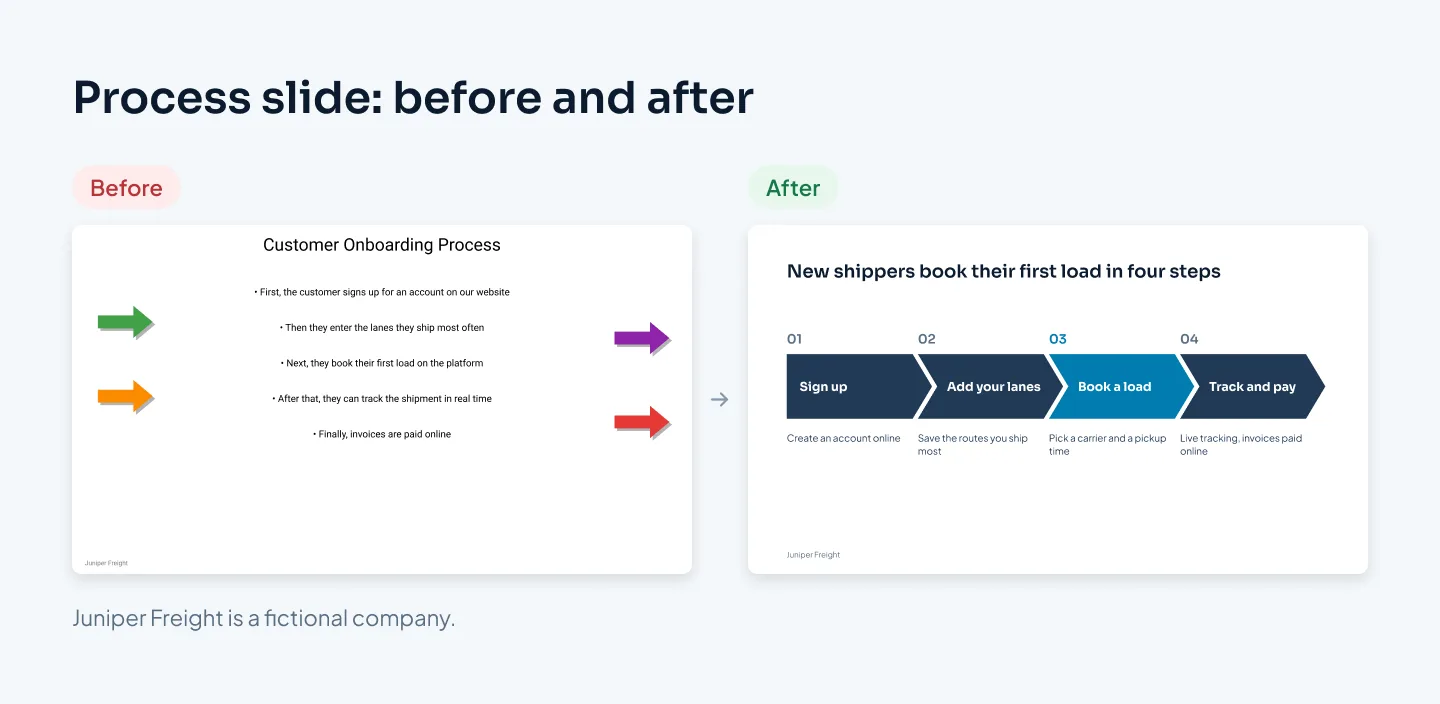
Write the steps first. Four labels, verb first: Sign up, Add your lanes, Book a load, Track and pay. Add one short line of detail for each. Merge or cut anything that isn't really a step; the original slide had five bullets for four steps.
Write the title as the point. "New shippers book their first load in four steps" says more than "Customer onboarding process".
Mark out the space. Decide where the diagram sits inside your slide margins, usually the full content width below the title.
Draw one shape and finish it. From Insert > Shapes, draw one chevron. Give it a theme fill, no outline and no effects, then type the label in your body font. Get this one shape exactly right before you copy it.
Copy it for the other steps. Copies keep the size, fill and text style, so all four match.
Align and distribute. Select all four, align their middles, and distribute them horizontally so the gaps are equal. The first and last chevrons should sit on your margins.
Add numbers and detail. Put the step number (01 to 04) above each chevron and the detail line below it, left-aligned to the chevron's edge.
Set the accent. Color the step you want remembered. Here it's step 3, booking the first load, because that's the moment that matters to the business. The other steps stay in a neutral tone.
Group and name. Group each chevron with its number and detail line. In the Selection Pane, rename the groups "Step 1" to "Step 4", so colleagues can find them later.
Add alt text. Right-click the diagram and choose View Alt Text, then describe the process in one sentence, with the steps in order.
If you want the steps to appear one at a time as you talk, reveal each group in turn. Our guide to PowerPoint animation covers when motion helps and when to skip it.
Step by step: a timeline
Timelines go wrong in two ways: too much text on each milestone, and spacing that misrepresents time. Here's a clean build, again for Juniper Freight.

List the milestones with dates. Keep to four to eight. If you have more, show only the ones this audience needs.
Check the intervals. If the milestones fall at regular intervals, such as one per quarter, space them evenly. If they don't, space them by time, so a six-month gap looks longer than a one-month gap.
Draw one line. From Insert > Shapes, draw a straight line across the content width, in a neutral color.
Add the markers. Draw one small circle, copy it for each milestone, align the circles' middles to the line and distribute them horizontally.
Add the labels. Each one gets the date in bold and one short line of text. Alternate them above and below the line so neighboring labels never collide, and center each label on its marker.
Mark today. Give the current point the accent color and a small "Today" tag. Show past milestones as solid markers and future ones as outlined markers, still dark enough to see clearly, so the audience can tell at a glance where you are.
Group and check. Group the line, markers and labels. Then look at the slide for five seconds: can you tell where the company has been and what comes next?
Keep it editable
An infographic gets edited more than most slides. Steps get renamed, dates move, a fifth option appears. Build it so the next person can change it in a minute instead of rebuilding it in an hour.
Native shapes and live text only. No pasted pictures of diagrams, and no text flattened into images.
Theme colors throughout. A new palette then flows through every diagram at once.
Grouped by meaning. One group per step or milestone, so moving a step moves its label too.
Named in the Selection Pane. "Step 3" is easier to find than an unnamed shape, and the pane also lets you pick objects that sit under others.
Alt text on every diagram, describing what it shows rather than what it looks like.
For a real example of complex information made easy to follow, see the Utatu Opus investment proposal: an animated proposal for a rooftop solar project in Uganda that makes a financial model easy to follow.
If you'd rather hand it over, our PowerPoint presentation design service builds diagrams this way. At Pixel Presentation, custom infographics and process diagrams count as complex slides: $15 instead of the standard $10 a slide, and you see which slides count before you order. Our guide to presentation design costs explains what else affects the price, and the pricing estimator gives you the exact figure for your deck.